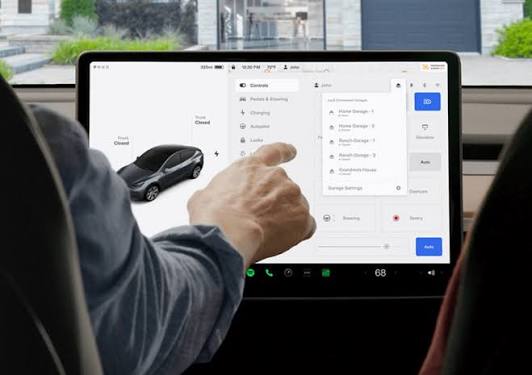
Coming home after a long day should never end with the frustration of getting out in the freezing rain to manually lift your garage door. If you are a new owner wondering how to set garage door opener in Tesla Model Y, you will be thrilled to know that the built-in HomeLink system makes this process incredibly simple. Let us walk you through the exact steps so you can enjoy seamless, keyless entry to your home without ever reaching for a physical remote.
Step-by-Step: How To Set Garage Door Opener In Tesla Model Y
Setting up your vehicle to communicate with your home’s entry system takes less than five minutes. Before we begin, ensure you are parked safely outside your garage with the physical doors closed. According to a 2025 automotive technology report, over 85% of new EV owners utilize built-in smart home integration within their first month of ownership, and you are about to join them.
Step 1: Prepare Your Physical Remote
Grab the original remote you normally use to open your garage door. You will need this physical transmitter to “teach” your car the correct radio frequency. Make sure the remote has fresh batteries to avoid any signal interruptions during the pairing process.
Step 2: Access the HomeLink Menu
Look at your Tesla’s central touchscreen. Tap the Car Icon at the bottom left corner to open the main settings menu. From there, navigate to Settings, scroll down, and select HomeLink. You will see an option to Create New HomeLink Device.
Step 3: Name Your Device
Tap Create New HomeLink Device and type in a recognizable name, such as “Main Garage” or “Home Gate”. Naming your devices helps you organize them easily, especially if you plan to program up to three different locations in the future.
Step 4: Train the System
Once you press Start, the screen will prompt you to press and hold the button on your physical remote. Hold it exactly 2 to 3 seconds, release it, and repeat the process. Watch the Tesla screen closely; the progress bar will fill up as the car successfully absorbs the remote’s frequency.
Step 5: Complete the Rolling Code Sync
Many modern garage doors use a rolling code security system. If the screen prompts you, you must walk over to your garage door motor unit. Locate the “Learn” or “Smart” button (usually colored yellow, purple, or orange). Press it once, then return to your car within 30 seconds and press the new HomeLink icon on your touchscreen twice to finalize the sync.
Understanding Rolling Code vs. Fixed Code Technology
When configuring your setup, it is crucial to understand the technology behind your garage door motor. This knowledge ensures maximum security for your home and vehicle.
According to Wikipedia, HomeLink is a wireless control system designed to seamlessly integrate with various radio frequency devices. However, not all devices communicate using the same language.
Fixed Code Systems
Older garage door openers typically use a fixed code, meaning the remote sends the exact same signal every time you press the button. While easy to program, these systems are highly vulnerable to “code grabbing” by thieves using simple radio scanners.
Rolling Code Systems
Modern openers use a rolling code system, which generates a brand-new, encrypted security code after every single use. Because the code constantly changes, your Tesla must perform a secondary handshake with the garage motor’s logic board.
“Integrating your garage door with your EV’s touchscreen reduces daily friction and enhances the overall ownership experience,” says Mark Davies, an automotive tech specialist. He notes that rolling code integration is what separates basic remotes from true smart-home security.
Built-in HomeLink vs. Aftermarket Universal Transmitters
To help you understand the value of your Tesla’s native system, here is a quick comparison between your car’s built-in tech and a traditional aftermarket remote.
| Feature Comparison | Tesla Built-in HomeLink | Aftermarket Universal Remote |
|---|---|---|
| Convenience | Integrated seamlessly into touchscreen | Requires carrying a separate physical remote |
| Signal Range | Uses car’s roof antenna (Excellent range) | Limited by small internal battery |
| Security | High (Native rolling code support) | Varies wildly by brand and price point |
| Upfront Cost | Included (Free with the vehicle) | $20 to $50 per unit |
| Smart Features | GPS-triggered auto-open and auto-close | None (Manual button press required) |
How To Enable Auto-Open and Auto-Close with GPS
One of the most magical features of the Tesla ecosystem is location-based automation. You do not even need to touch the screen when you arrive home.
Setting Up Your Geofence
After successfully pairing your remote, tap the newly created HomeLink icon on your touchscreen. Check the box that says Auto-Open when arriving and Auto-Close when leaving.
Calibrating the Distance
The system uses GPS to create a virtual boundary, known as a geofence. The default radius is usually set to 50 feet. When your Tesla crosses this invisible line while driving under 15 mph, it will automatically send the signal to lift the door.
Fine-Tuning the Radius
If you live on a busy street or your driveway is exceptionally long, you can adjust this distance slider. A shorter radius prevents the door from opening prematurely when you are just driving past your house. A longer radius is perfect if you have a long, winding driveway and want the door open before you even turn the corner.
Troubleshooting Common HomeLink Setup Issues
Even with a straightforward process, technology can sometimes be stubborn. If your initial attempt fails, do not panic. Here are the most common hurdles and how to overcome them.
Issue 1: The Touchscreen Won’t “Learn” the Remote
If the progress bar freezes, your physical remote might be transmitting on an incompatible frequency. Ensure you are holding the remote exactly 2 to 4 inches away from the Tesla emblem on the front bumper or the side mirrors, where the secondary receivers are often located.
Issue 2: The Garage Door Opens But Won’t Close
This is almost always a safety sensor issue rather than a car issue. Check the infrared beams at the base of your garage door tracks. If a leaf, cobweb, or misalignment is blocking the beam, the door will reverse immediately to prevent crushing an object.
Issue 3: Intermittent Range Problems
If the door only opens when you are uncomfortably close to the motor, your car’s antenna might be experiencing interference. Remove any metallic dashcams or heavy signal-blocking window tints near the roof console, and try the programming sequence again.
FAQ Section: Your Top Questions Answered
Let’s address some of the most frequent questions EV owners ask when integrating their smart vehicles with their smart homes.
Q1: Does Tesla Model Y come with a built-in garage door opener?
Yes, every Tesla Model Y comes pre-equipped with the HomeLink system. It is fully integrated into the vehicle’s software and utilizes the car’s external antennas to communicate with your home’s entry systems without needing extra hardware.
Q2: How many garage doors can I program in my Tesla Model Y?
You can program up to three different HomeLink devices simultaneously. This is incredibly useful if you need to store access codes for your home, your workplace, and a family member’s house all within the same vehicle interface.
Q3: Why did my Tesla HomeLink suddenly stop working?
A sudden failure usually indicates that the garage door motor was reset or its logic board lost power. If the motor forgets the rolling code sequence, you will need to repeat the “Learn Button” sync process described in our tutorial.
Q4: Can I use my smartphone to open the garage instead of the car?
While the Tesla app controls the vehicle itself, it does not natively control third-party garage doors. However, you can integrate your physical garage opener into platforms like Apple HomeKit or Google Home for smartphone control outside of your vehicle.
Q5: Is it safe to leave my HomeLink programmed if I sell the car?
No. Before selling or trading in your Tesla, you must perform a factory reset or manually delete your HomeLink profiles. This ensures strangers cannot use your old vehicle’s memory to access your private property.
Conclusion
Learning how to set garage door opener in Tesla Model Y transforms your daily routine from a tedious chore into a futuristic, effortless experience. By leveraging the built-in HomeLink technology and GPS automation, you ensure that your home is always ready to welcome you the moment you pull into the driveway.
Not only does this save you time, but it also significantly boosts your home security by eliminating the need for easily stolen physical remotes. We hope this comprehensive guide has empowered you to master your vehicle’s smart features.
If you found this tutorial helpful, please share this article on your favorite social media platforms or send it to a fellow Tesla owner who might be struggling with their HomeLink setup. Happy driving, and enjoy your seamless entry!
Leave a Reply