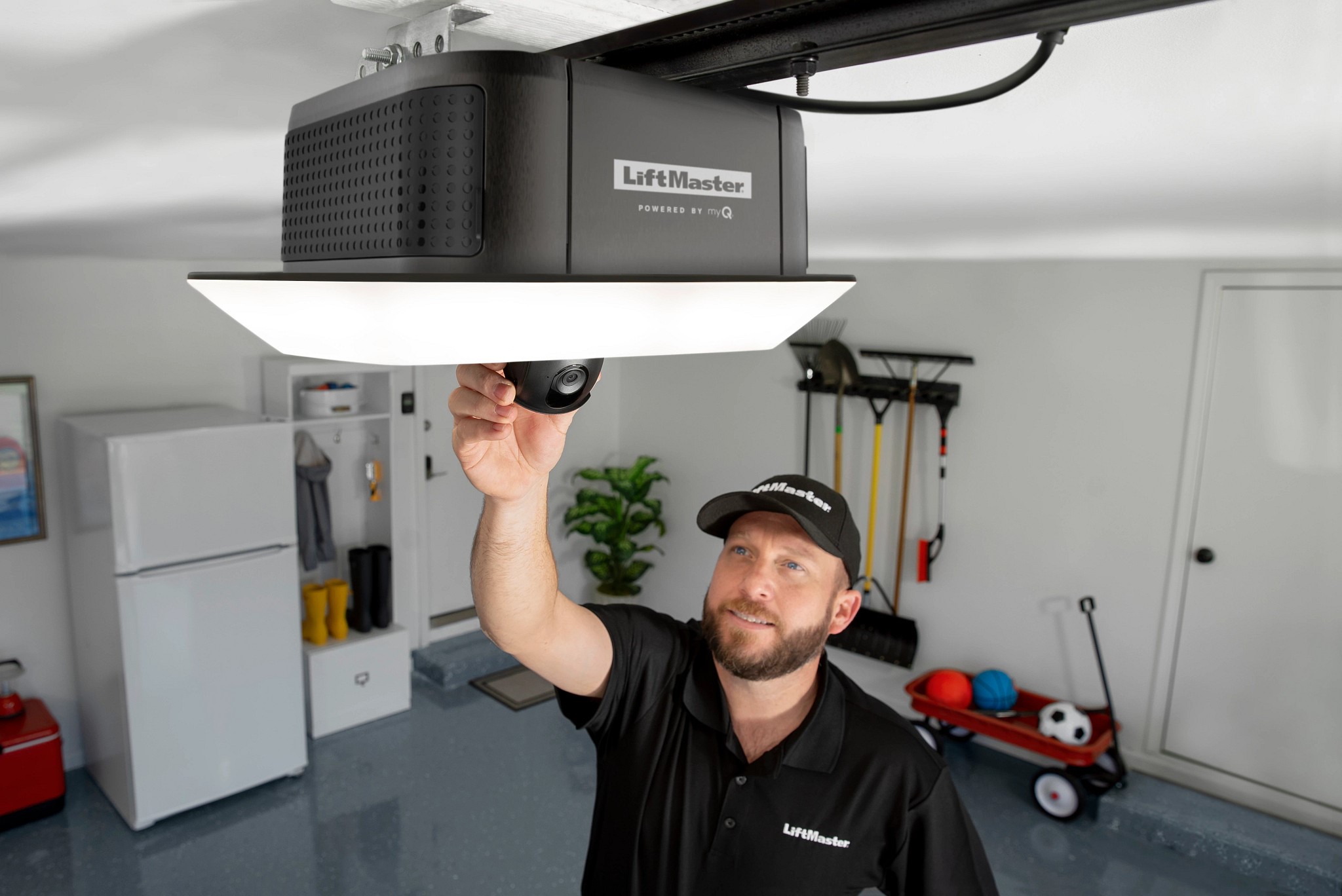
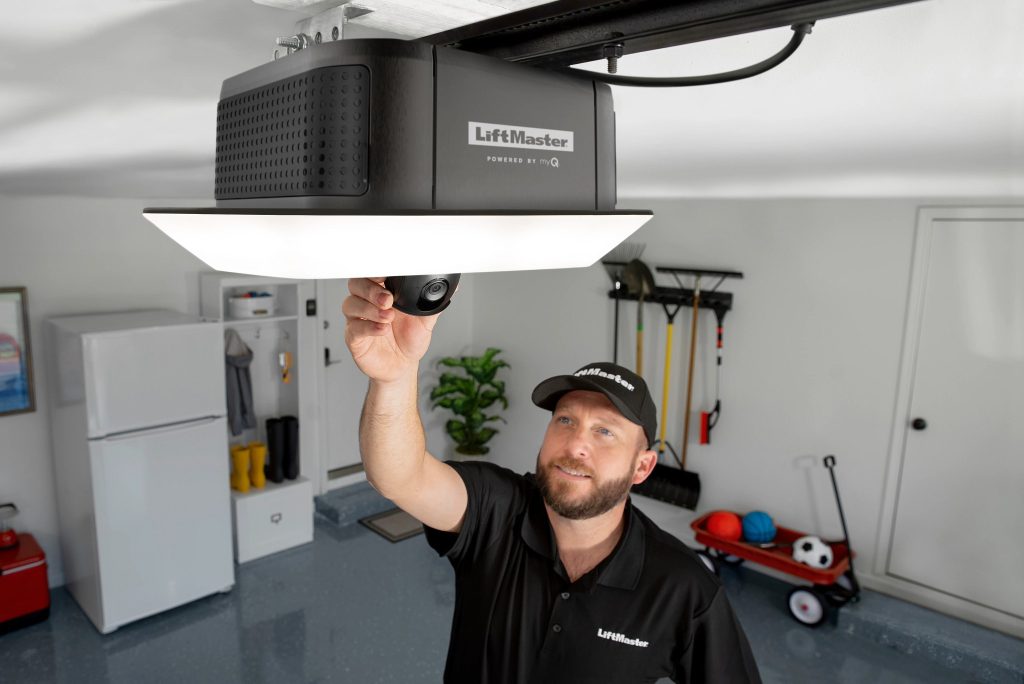
Have you ever stood in your driveway, phone in hand, frustrated because your garage door simply won’t respond to the app? You are not alone. Connectivity issues are one of the most common headaches for smart home owners, but knowing how to reset WiFi on MyQ garage door opener can save you time, money, and a lot of stress. Whether you recently changed your internet provider or moved to a new house, getting your MyQ system back online is simpler than you might think.
In this comprehensive guide, we will walk you through the exact steps to reconnect your device, troubleshoot persistent errors, and ensure your smart garage remains secure and accessible. Let’s get your door moving again.
Why Does MyQ Lose WiFi Connection?
Before diving into the reset process, it helps to understand why these disconnections happen in the first place. The MyQ system relies on a stable connection between your garage door opener, your home router, and the cloud servers. Several factors can disrupt this link.
- Router Changes: If you upgraded your router or changed your WiFi password, the MyQ hub loses its authentication credentials.
- Signal Interference: Garages are often located at the farthest point from the main router. Thick walls, metal insulation, and other electronic devices can weaken the signal.
- Frequency Mismatch: Most MyQ hubs operate on the 2.4 GHz band. If your router is set to 5 GHz only, or if “band steering” is causing confusion, the hub may drop off the network.
- Power Outages: Sudden power loss can sometimes corrupt the temporary memory of the hub, requiring a fresh handshake with the router.
Understanding these triggers helps prevent future disconnects. For more technical details on how IoT devices communicate, you can refer to general networking principles on Wikipedia.
Step-by-Step: How to Reset WiFi on MyQ Garage Door Opener
Resetting the WiFi on your MyQ device is not always a single button press. The method depends slightly on whether you have a newer Wi-Fi enabled hub (like the MyQ Smart Garage Hub) or an older model that requires a separate internet gateway. Below is the universal approach that works for most modern MyQ systems.
Step 1: Prepare Your Information
Before you start, ensure you have the following ready:
- Your WiFi network name (SSID).
- Your WiFi password.
- The MyQ app installed and logged in on your smartphone.
- Note: Ensure your phone is connected to the 2.4 GHz network, not the 5 GHz band.
Step 2: Locate the Settings Button
On most MyQ hubs, there is a small black button labeled “Settings” or represented by a gear icon. It is usually located on the side or back of the device. If you have an older model with a separate internet gateway, look for the “Learn” or “WiFi” button on that specific unit.
Step 3: Initiate the Reset Mode
- Press and hold the Settings button for about 10 seconds.
- Watch the LED indicator light. It should begin flashing blue. This indicates the device is in pairing mode and has cleared its previous WiFi credentials.
- Release the button once the light starts flashing.
Step 4: Reconnect via the MyQ App
- Open the MyQ app on your smartphone.
- Tap the menu icon (three lines) in the top left corner.
- Select “Add Device” or “Set Up New Device.”
- Follow the on-screen prompts. The app will search for the hub in pairing mode.
- When prompted, select your home WiFi network and enter the password carefully.
- Wait for the confirmation message. The LED light on the hub should turn solid blue or green, indicating a successful connection.
Troubleshooting Table: Common LED Signals
| LED Color/Pattern | Meaning | Action Required |
|---|---|---|
| Flashing Blue | Pairing Mode | Proceed with app setup. |
| Solid Blue | Connected | No action needed. |
| Flashing Red | Connection Error | Check WiFi password or signal strength. |
| Solid Red | Hardware Fault | Contact support; may need replacement. |
| Off | No Power | Check power outlet and cable. |
Optimizing Your Garage WiFi Signal
If you have successfully reset the WiFi but find that the connection drops frequently, the issue might not be the reset process itself, but rather the signal quality. Garages are notorious “dead zones” for WiFi.
Use a WiFi Extender
Consider placing a WiFi extender halfway between your router and the garage. This boosts the signal strength without requiring complex wiring. Ensure the extender supports the 2.4 GHz band.
Check Router Placement
If possible, move your main router closer to the garage or elevate it. Metal objects, such as filing cabinets or cars, can block signals. Try to keep a clear line of sight between the router and the garage door opener if feasible.
Update Firmware
Outdated firmware can cause compatibility issues with newer routers. Open the MyQ app, go to Device Settings, and check for any available firmware updates. Installing the latest version can resolve hidden bugs affecting connectivity.
People Also Ask: Common Questions About MyQ WiFi
Here are answers to the most frequent questions users have when dealing with MyQ connectivity issues.
1. Can I reset MyQ without using the app?
While the physical button puts the device in pairing mode, you generally need the MyQ app to complete the WiFi configuration. The app acts as the bridge between your phone’s internet connection and the hub. However, if you are unable to use the app, you can try power-cycling the device (unplugging it for 30 seconds) to see if it reconnects automatically to the last known network, though this is not a full reset.
2. Why does my MyQ say “Offline” even after resetting?
If the device says “Offline” post-reset, check your router’s firewall settings. Some security suites block IoT devices by default. Additionally, ensure that your router is not using MAC address filtering, which might prevent the MyQ hub from accessing the network. You may need to whitelist the MyQ device’s MAC address, which can be found on the label of the hub.
3. Does resetting WiFi delete my garage door schedules?
No, resetting the WiFi connection does not delete your user data, schedules, or access codes stored in the cloud. Your preferences are tied to your MyQ account, not just the local hardware. Once reconnected, all your settings should sync back automatically.
4. What if the LED light doesn’t flash blue?
If the LED does not respond to holding the settings button, the device may be frozen. Unplug the power adapter from the wall outlet, wait for 60 seconds, and plug it back in. Try the reset process again. If it still fails, the hardware might be defective, and you should contact Chamberlain support.
5. Is it safe to use public WiFi with MyQ?
No, you should never connect your MyQ hub to public WiFi networks. Public networks are unsecured and can expose your smart home devices to hackers. Always use a password-protected, private home network with WPA2 or WPA3 encryption.
6. How often should I reset my MyQ WiFi?
You should only reset the WiFi when necessary, such as after changing routers or passwords. Frequent resets are not recommended as they do not improve performance and can occasionally lead to configuration errors. If you find yourself resetting monthly, investigate your router’s stability instead.
Expert Tips for Long-Term Stability
To ensure your MyQ system remains reliable for years, consider these professional tips:
- Static IP Address: Assign a static IP address to your MyQ hub in your router settings. This prevents the router from assigning a new IP address that the hub might not recognize, reducing dropout rates.
- Regular Reboots: Schedule a monthly reboot of your router. This clears cache and refreshes connections for all devices, including your garage opener.
- Avoid Power Strips: Plug the MyQ hub directly into a wall outlet. Power strips with surge protectors can sometimes interfere with the low-voltage requirements of smart hubs.
Conclusion
Learning how to reset WiFi on MyQ garage door opener is a crucial skill for any smart home owner. By following the simple steps of entering pairing mode and reconfiguring through the app, you can quickly restore functionality and peace of mind. Remember, most connectivity issues stem from signal interference or router changes, so optimizing your network environment is just as important as the reset itself.
Don’t let a disconnected garage door disrupt your day. With the right knowledge, you can troubleshoot like a pro. If this guide helped you get back online, please share it with friends or family who might be struggling with their smart garage setups. Stay connected, stay secure, and enjoy the convenience of your smart home!
Leave a Reply