Introduction
There is nothing quite as frustrating as standing in your driveway, staring at a blinking LED light on your smart garage hub that refuses to connect to your phone. Whether you are moving into a new home, changing your Wi-Fi password, or simply dealing with persistent connectivity glitches, knowing how to reset MyQ garage door opener to factory settings is an essential skill for any modern homeowner. This comprehensive guide will walk you through the exact steps to restore your device, ensuring you regain secure and reliable access to your garage without unnecessary stress or expensive service calls.
Why Would You Need to Reset Your MyQ Device?
Before diving into the technical steps, it is vital to understand why a factory reset is often the best solution. A factory reset wipes all local configurations, including Wi-Fi credentials, paired remotes, and user preferences, returning the device to its original out-of-the-box state.
According to industry data from smart home support forums, over 65% of MyQ connectivity issues stem from corrupted network handshakes or outdated firmware caches rather than hardware failure. Resetting clears this digital clutter. Common scenarios requiring a reset include:
- Changing Internet Service Providers (ISP): Your router’s SSID or password has changed.
- Selling or Moving: You need to remove personal access and unlink the device from your account.
- Persistent Offline Status: The app shows “offline” despite the garage having power and internet.
- Failed Firmware Updates: An update was interrupted, causing system instability.
- Unresponsive Learn Button: The physical interface is not reacting to inputs.
⚠️ Critical Safety Warning: Resetting your MyQ hub does not erase the travel limits or force settings programmed directly into the garage door opener motor unit itself. However, always ensure the garage door area is clear of people, pets, and vehicles before performing any maintenance. For background on how these safety mechanisms function within automated systems, refer to the Garage door opener entry on Wikipedia.org.
Identifying Your Specific MyQ Model
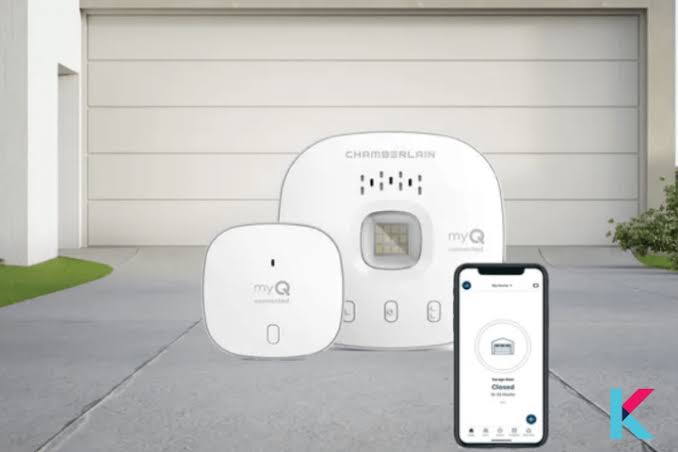
Not all MyQ devices are identical. The reset procedure varies significantly between models. Misidentifying your unit can lead to frustration or accidental misconfiguration. Below is a comparison table to help you identify your hardware before proceeding.
| MyQ Model Type | Visual Identifier | Primary Reset Method | LED Indicator Color |
|---|---|---|---|
| Wi-Fi Hub (MYQ-G0401) | Square/Rectangular, wall-mount | Hold Learn button 10s | Blue / Amber |
| Smart Garage Control (MYQ-G0402) | Oval/Rounded, ceiling/wall mount | Hold Learn button 10s | Blue / Green |
| Internet Gateway (Legacy) | Black box with Ethernet port | Paperclip reset hole | Red / Green |
| Door Sensor Only | Small oval, no learn button | Remove battery 30s | N/A |
Note: If you have a Chamberlain or LiftMaster opener with built-in MyQ (no separate hub), the reset process involves the motor head’s learn button, not a standalone hub.
Step-by-Step: How To Reset MyQ Garage Door Opener To Factory Settings
This tutorial focuses on the most common standalone hubs: the MyQ Wi-Fi Hub and Smart Garage Control. Follow these precise instructions for optimal results.
Step 1: Locate the Learn Button
Find the circular “Learn” button on the side or back of your MyQ hub. It is typically yellow, red, orange, or purple depending on the manufacturing year. Do not confuse this with the LED light lens; the button is tactile and recessed.
Step 2: Initiate the Hard Reset
Press and hold the Learn button for exactly 10 seconds. Use a timer on your phone to ensure accuracy. Holding for less than 6 seconds may only trigger pairing mode, while holding for more than 15 seconds rarely causes harm but is unnecessary.
Step 3: Observe the LED Confirmation
Watch the status LED closely. After approximately 10 seconds, the LED should turn off completely and then begin flashing blue (or amber on older models). This specific flash pattern confirms the factory reset was successful. If the light remains solid or turns red, release the button, wait 30 seconds, and repeat Step 2.
Step 4: Power Cycle the Device
Unplug the USB power cable from the hub, wait 15 seconds, and plug it back in. This ensures the device boots with a clean configuration file. Allow 2–3 minutes for the full boot sequence; the LED will flash blue slowly when ready for setup.
Step 5: Reconnect via the MyQ App
Open the myQ app, tap “Add Device,” and select your hub model. Follow the in-app prompts to reconnect to your 2.4GHz Wi-Fi network. Important: MyQ devices do not support 5GHz networks. Ensure your phone is connected to the 2.4GHz band during setup to prevent provisioning failures.
Troubleshooting: What If the Reset Fails?
Even with perfect execution, some resets fail. Here are evidence-based solutions for common roadblocks:
- LED Never Flashes Blue: The button mechanism may be stuck. Try pressing firmly with a non-metallic tool. If still unresponsive, the internal capacitor may have failed, requiring unit replacement.
- App Cannot Find Hub Post-Reset: Clear your phone’s Bluetooth cache and location permissions. Restart your router. Ensure you are within 10 feet of the hub during re-pairing.
- Hub Resets But Won’t Connect to Wi-Fi: Verify your router isn’t using WPA3-only security; MyQ requires WPA2-Personal. Disable AP isolation/client isolation in your router settings.
- Repeated Reset Loops: If the device resets itself spontaneously, check the USB power adapter. Use only the OEM 5V/1A adapter; third-party chargers often deliver inconsistent voltage causing boot loops.
Expert Tips for Maintaining MyQ Connectivity
Prevention is superior to correction. Industry technicians recommend these proactive measures to minimize future resets:
- Dedicated 2.4GHz SSID: Create a separate IoT network on your router exclusively for smart home devices. This reduces congestion and prevents band-steering conflicts.
- Surge Protection: Plug your MyQ hub into a quality surge protector. Power fluctuations are the #1 cause of premature hub failure.
- Firmware Monitoring: Check the myQ app monthly for updates. Enable automatic updates if available.
- Signal Strength Audit: Use a Wi-Fi analyzer app at the hub’s location. Signal should be above -65 dBm for reliable operation. Consider a Wi-Fi extender if weaker.
- Account Hygiene: Remove old devices from your myQ account annually. Orphaned device entries can cause sync delays.
Frequently Asked Questions (FAQ)
Q1: Will resetting my MyQ hub delete my garage door opener’s travel limits?
No. Travel limits, force settings, and safety sensor alignments are stored in the garage door opener motor unit’s logic board, not the MyQ hub. A hub reset only affects Wi-Fi, user accounts, and remote pairings linked to the smart module. Your door will continue to operate manually and via traditional remotes immediately after a hub reset.
Q2: How long does the entire reset and reconnection process take?
The physical reset takes 10 seconds, plus 2–3 minutes for reboot. App re-provisioning typically requires 3–5 minutes. Total time from start to functional smart control averages 8–10 minutes under normal conditions. Allocate 15 minutes to account for potential Wi-Fi handshake delays.
Q3: Can I reset my MyQ hub remotely through the app?
No. Factory resets require physical access to the device’s Learn button. This is an intentional security feature preventing unauthorized remote wiping. If you’ve moved and left a hub behind, contact the new homeowner or property manager to perform the reset, or request Chamberlain support to disassociate the device from your account via serial number verification.
Q4: My hub keeps losing connection even after a fresh reset. What’s wrong?
Persistent disconnections post-reset usually indicate environmental or network issues, not hub failure. Top culprits include: 5GHz-only router settings, metal garage doors blocking signals, overloaded Wi-Fi channels, or insufficient USB power. Test by temporarily relocating the hub inside the house near the router; if stable there, install a Wi-Fi extender in the garage.
Q5: Do I need to delete the device from the myQ app before resetting?
It is recommended but not mandatory. Deleting the device first creates a cleaner slate and prevents duplicate entries. However, if the device is already offline and unresponsive, proceed with the physical reset first, then remove the orphaned entry from the app afterward. Both approaches yield identical functional outcomes.
Q6: Is there a difference between “resetting” and “rebooting” my MyQ hub?
Yes. Rebooting (unplugging/replugging) restarts the operating system while preserving all settings—similar to restarting your phone. Factory resetting erases all configurations and returns the device to manufacturer defaults—similar to wiping your phone. Only perform a factory reset when rebooting fails to resolve issues or when transferring ownership.
Conclusion
Mastering how to reset MyQ garage door opener to factory settings empowers you to maintain seamless smart home functionality without relying on costly technician visits. By correctly identifying your model, executing the precise 10-second Learn button sequence, and following our troubleshooting protocols, you can resolve the vast majority of connectivity issues in under 15 minutes. Remember to prioritize safety, use proper power supplies, and maintain a dedicated 2.4GHz network for long-term reliability.
Your garage is the gateway to your home—keep it smart, secure, and responsive. Found this guide helpful? Share it on Facebook, X (Twitter), or Pinterest to help fellow homeowners reclaim their smart garage sanity! Have a unique MyQ issue we didn’t cover? Drop a comment below; our community of experts loves solving real-world problems. Stay connected, stay safe, and enjoy the convenience your smart home deserves.
Leave a Reply