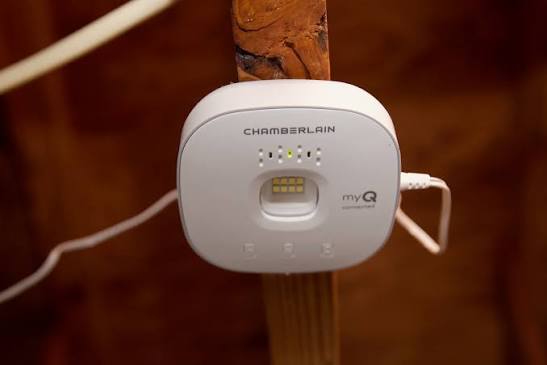
We have all been there: you are halfway down the street, and a sudden wave of panic hits because you cannot remember if you closed the garage. Learning How To Connect Myq Garage Door Opener To Google Home gives you the ultimate convenience of voice-controlled access and total peace of mind. Let us walk through the simple setup process together so you can start enjoying a fully automated home today.
Why You Need to Know How To Connect Myq Garage Door Opener To Google Home
The modern garage is no longer just a place to park your car. It is the primary entryway for most American households and a critical point of home security.
According to recent industry data from Statista, over 78 million households in the US now utilize smart home security and access devices. This massive shift toward automation is driven by the need for convenience and safety.
When you integrate your garage into a broader smart home ecosystem, you bridge the gap between physical security and digital control. You no longer need to fumble for a remote control or use a separate app just to let a family member inside.
Furthermore, integrating your devices allows for powerful routines. Imagine your garage door automatically closing when you say, “Hey Google, goodnight,” while your smart locks engage and the lights dim.
As home automation experts frequently highlight, “The garage is the most vulnerable entry point; automating it is the first logical step in modern home security.” By linking your MyQ system to Google Assistant, you are actively upgrading your property’s safety profile.
Prerequisites: Preparing Your Hardware and Network
Before we dive into the exact steps, we must ensure your hardware is ready for the integration. Skipping this phase is the number one reason users experience connection failures.
First, verify your MyQ hardware. You need an active MyQ Smart Garage Hub or a newer Chamberlain/LiftMaster Wi-Fi enabled garage door opener. The device must be successfully connected to your myQ app and functioning properly on its own.
Second, check your Wi-Fi network specifications. Smart home IoT (Internet of Things) devices almost exclusively require a 2.4GHz Wi-Fi band. If your router broadcasts a combined 2.4GHz and 5GHz network under a single name, you may need to temporarily separate them in your router settings to ensure a stable connection.
Third, update your mobile applications. Ensure your smartphone is running at least iOS 14.0 or Android 10.0. Open your app store and verify that both the myQ app and the Google Home app are updated to their latest available versions.
Finally, stand inside your garage and check your smartphone’s Wi-Fi signal. You should have at least two full bars of internet connectivity right next to the motor unit. Weak signals will cause the authorization process to time out.
Step-by-Step: The Ultimate Setup Tutorial
Now that your environment is prepared, we can begin the actual linking process. Please follow these exact steps on your smartphone or tablet. Keep your MyQ login credentials handy, as you will need them in Step 4.
Step 1: Launch the Google Home App Open the Google Home app on your mobile device. Ensure you are logged into the primary Google account that manages your home’s smart devices. Tap the “+” (Plus) icon located in the top left corner of the home screen.
Step 2: Initiate Device Setup From the dropdown menu, select Set up device. You will be presented with two options. Choose Works with Google (sometimes labeled as “Set up or add works with Google”). This tells the system you are linking an existing third-party service rather than a new physical gadget.
Step 3: Search for the MyQ Service A search bar will appear at the top of your screen. Type in “myQ” and wait for the icon to populate in the list below. Tap the blue myQ icon to proceed to the authorization portal.
Step 4: Authorize the Connection Your phone’s browser will open a secure login page. Enter your myQ email address and password. Once logged in, you will see a prompt asking for permission to share your device data with Google. Tap Accept or Authorize.
Step 5: Assign a Room The Google Home app will now detect your garage door. It will ask you to assign the device to a specific “Room” in your digital home layout. Select Garage (or create it if it does not exist) and tap Next.
Step 6: Test the Integration You should now see a garage door icon on your Google Home dashboard. Tap the icon to ensure it accurately reflects the current open or closed status of your physical door.
Pros vs. Cons of Voice-Controlled Garage Access
Is this integration right for your household? Let us break down the advantages and limitations of linking these two platforms.
| Feature | Pros | Cons |
|---|---|---|
| Convenience | Hands-free operation when carrying groceries or kids. | Requires a strong, stable Wi-Fi connection to work reliably. |
| Security | Receive instant alerts if the door is left open too long. | Voice opening commands require an additional PIN setup for safety. |
| Routines | Can be tied to “Leaving Home” or “Goodnight” routines. | Dependent on third-party server uptime (rare outages can pause service). |
| Accessibility | Excellent for elderly users or individuals with mobility issues. | Initial setup requires basic knowledge of router frequencies (2.4GHz). |
Troubleshooting: What If MyQ Won’t Link?
Even with perfect preparation, technology can sometimes be stubborn. If you encounter an error during the setup process, try these proven troubleshooting methods.
The “Spinning Wheel” Timeout Error If the Google Home app freezes while searching for myQ, force-close both applications. Restart your smartphone entirely, reconnect to your 2.4GHz Wi-Fi network, and try the authorization step again.
“Device Not Found” Error This usually means your MyQ hub has lost its connection to your router. Open your standalone myQ app. If the device shows as “Offline,” unplug your MyQ hub from the power outlet. Wait exactly 30 seconds, plug it back in, and wait for the solid blue LED light to return before retrying the Google Home link.
Incorrect Status Reporting If Google Home says the door is closed, but it is actually open, your door sensor may be misaligned. Check the small black sensor attached to the top panel of your garage door. Ensure the battery is not dead and that it is perfectly flush against the metal bracket.
Frequently Asked Questions (FAQ)
Here are the most common questions users ask when managing their smart garage integrations.
1. Can I open my garage door using Google Home voice commands?
Yes, but with a strict security caveat. Google allows you to close the door via voice command without any extra steps. However, to open the door via voice, you must set up a 4-digit security PIN within the MyQ app. This prevents unauthorized individuals from simply yelling through a window to open your home.
2. Do I need to pay a monthly subscription fee for this to work?
No. Linking your MyQ account to Google Home is entirely free. Basic remote access, status checking, and voice control do not require a myQ premium subscription. You only need to pay if you want advanced features like in-garage package delivery or extended cloud video storage for add-on cameras.
3. Why does Google Home say “Sorry, I can’t reach MyQ right now”?
This error indicates a breakdown in communication between Google’s servers and Chamberlain’s servers, or a local internet outage. First, check if your home internet is working. If your Wi-Fi is fine, the issue is likely a temporary cloud server outage on MyQ’s end. You will need to wait a few hours for their engineers to resolve the server sync issue.
4. Can multiple family members control the garage door?
Absolutely. Once the primary account holder links MyQ to Google Home, you can invite family members to your “Home” in the Google Home app. They will need to accept the email invitation, after which they can use their own Google Nest speakers or smartphones to check the door’s status and operate it using their unique voice profiles.
5. Will this work if my power goes out?
No. Both your Wi-Fi router and your MyQ Smart Garage Hub require electricity to function. If your home loses power, your internet will drop, and the smart integration will go offline. However, you can still operate the garage door manually using the physical wall button or the emergency release cord on the motor carriage.
Conclusion
Mastering smart home technology does not have to be a stressful or overly technical endeavor. By following this guide, you have successfully bridged the gap between your physical home and your digital assistant, ensuring your property is secure, accessible, and highly efficient.
The ability to check your garage status from your bedroom or close the door while your hands are full of groceries fundamentally changes your daily routine for the better. You have taken a massive step toward true home automation.
Did you find this tutorial helpful? Please share this article on your favorite social media platforms like Facebook, X (Twitter), or Pinterest to help your friends and family upgrade their smart homes today!
Leave a Reply