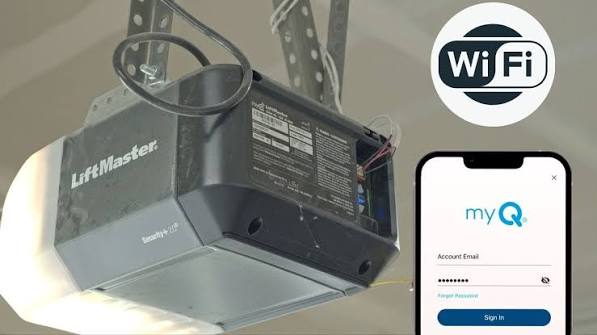
Introduction
There is nothing quite as frustrating as leaving for work and suddenly wondering, “Did I close the garage door?” If you are searching for how to connect my LiftMaster garage door opener to WiFi, you are likely seeking peace of mind and the convenience of modern smart home technology. Fortunately, upgrading your existing LiftMaster unit to a smart system is often simpler than you think, and it unlocks features like remote monitoring, guest access, and delivery notifications. This guide will walk you through the process safely and efficiently, ensuring you get connected without the headache.
Understanding Your LiftMaster Model Compatibility
Before diving into the setup process, it is critical to verify that your specific hardware supports WiFi connectivity. Not every LiftMaster opener has a built-in radio; some require an external accessory.
According to technical documentation referenced in general smart home interoperability standards on Wikipedia, successful IoT integration relies heavily on protocol compatibility between the device and the network hub. For LiftMaster, this means identifying whether your unit has the myQ logo printed directly on the motor head or if it uses the older Security+ 2.0 technology without integrated WiFi.
Quick Compatibility Check Table
| Feature | Built-In WiFi Models | Non-WiFi Compatible Models | Older/Incompatible Models |
|---|---|---|---|
| Visual Indicator | myQ Logo on Motor Head | Security+ 2.0 Logo (Yellow Learn Button) | Purple/Orange/Green Learn Button |
| WiFi Status Light | Yes (Blue LED) | No | No |
| Required Hardware | None | myQ Smart Garage Hub or Gateway | Replacement or Retrofit Needed |
| App Support | Full myQ App Access | Full myQ App Access | Limited or None |
Note: If your learn button is yellow, you likely have a compatible unit but may need the myQ Smart Garage Hub. If your learn button is purple, orange, or green, your opener is too old for direct smart integration.
Prerequisites Before Starting Setup
To ensure a smooth connection when figuring out how to connect my LiftMaster garage door opener to WiFi, gather the following items first. Skipping these steps is the number one cause of failed setups.
- A 2.4GHz WiFi Network: Most LiftMaster openers do not support 5GHz bands. Ensure your router broadcasts a 2.4GHz signal and that you know the password.
- The myQ App: Download the latest version from the Apple App Store or Google Play Store. Create an account before starting.
- Strong Signal Strength: Your phone should show at least 2-3 bars of WiFi signal while standing next to the garage door opener. If the signal is weak, consider a WiFi extender.
- Safety Sensors Aligned: The opener will not connect or operate remotely if the safety reversal sensors are misaligned or obstructed. Ensure both sensor LEDs are solid (not blinking).
- Ladder and Flashlight: You will need to access the motor head to press the learn button and observe status lights.
Step-by-Step Guide: Connecting Built-In WiFi Models
If your LiftMaster has the myQ logo and a blue WiFi status light, follow these precise steps. This process typically takes 5–10 minutes.
Step 1: Put the Opener in Programming Mode
Locate the adjustment buttons on the side or back of the motor unit. Press and hold the bottom button (often labeled with a WiFi icon or arrows) for approximately 6 seconds. Release when you hear a beep and see the blue LED begin to flash. This indicates the unit is broadcasting its own temporary setup signal.
Step 2: Connect via the myQ App
Open the myQ app and tap “Add Device” > “Garage Door Opener” > “LiftMaster with Built-In WiFi.” The app will search for the flashing blue light. When prompted, select your home’s 2.4GHz WiFi network and enter the password exactly. Tip: Copy and paste the password to avoid typos.
Step 3: Complete the Handshake
Once credentials are sent, the blue LED on the opener will flash rapidly as it connects to your router. This can take up to 60 seconds. When the light turns solid blue, the connection is successful. The app will then ask you to name the device (e.g., “Main Garage”) and test the open/close function.
Step 4: Verify Remote Operation
Leave your house or turn off WiFi on your phone to test cellular control. Open and close the door once to confirm latency is acceptable (usually under 3 seconds).
What If My Opener Doesn’t Have Built-In WiFi?
Many homeowners asking how to connect my LiftMaster garage door opener to WiFi discover mid-process that their unit lacks internal radios. Do not worry; you do not need a new opener.
You will need to purchase the myQ Smart Garage Hub. This small white box mounts to the ceiling near the opener and acts as a bridge.
- Plug the hub into power and wait for the blue light to flash.
- Use the app to connect the hub to your WiFi (same 2.4GHz requirement).
- Once the hub is online, the app will prompt you to “Link an Opener.”
- Press the yellow learn button on your LiftMaster motor head once.
- The hub will emit a click, and the app will confirm pairing.
This retrofit solution costs significantly less than a full replacement and provides identical smart features.
Troubleshooting Common Connection Failures
Even professionals encounter hiccups. Here are data-backed solutions for the most frequent issues:
- Blue Light Never Turns Solid: This is almost always a 5GHz issue. Log into your router admin panel and temporarily disable the 5GHz band, or create a dedicated 2.4GHz guest network solely for the setup process. Re-enable 5GHz after connection.
- App Can’t Find Device: Move closer to the opener. Bluetooth range during setup is only ~15 feet. Also, ensure location services are enabled for the myQ app—Android requires this to scan for local devices.
- Door Opens in App But Won’t Close Remotely: This is a safety feature, not a bug. If sensors are dirty or slightly misaligned, the opener blocks remote closing to prevent injury. Clean sensor lenses with a microfiber cloth and realign brackets until both LEDs are steady.
- Intermittent Disconnections: Garage environments are harsh on WiFi signals due to metal doors and concrete walls. A study on residential IoT reliability suggests that dedicated 2.4GHz channels (1, 6, or 11) reduce interference from neighboring networks. Change your router channel if drops persist.
Frequently Asked Questions (FAQ)
1. Is it safe to connect my garage door opener to WiFi?
Yes, when configured correctly. LiftMaster uses encrypted communication protocols similar to online banking. However, security experts recommend using a unique, strong password for your myQ account and enabling two-factor authentication (2FA) to prevent unauthorized access. Never share your login credentials.
2. Will connecting to WiFi drain my opener’s battery or damage the motor?
No. The WiFi module draws minimal standby power (typically under 1 watt) and does not interfere with the motor’s duty cycle. The opener’s capacitor and logic board are designed to handle continuous low-power connectivity without degradation.
3. Can multiple people control the same LiftMaster opener?
Absolutely. The primary account holder can invite unlimited users via email through the myQ app. Each user gets their own login and can be granted custom permissions (e.g., view-only vs. full control). This is ideal for families, dog walkers, or delivery drivers.
4. Why does my opener disconnect after a power outage?
Most LiftMaster units automatically reconnect once power is restored and the router is back online. If it doesn’t reconnect within 5 minutes, perform a hard reset by unplugging the opener for 30 seconds, then repeat the WiFi setup process. Consider a UPS (uninterruptible power supply) for critical smart home devices.
5. Does WiFi connection void my LiftMaster warranty?
No. Using manufacturer-approved accessories like the myQ hub or built-in WiFi features does not void the warranty. Only unauthorized modifications or third-party hacks that alter the firmware would risk coverage. Always use official myQ products.
6. Can I integrate LiftMaster with Alexa or Google Home?
Yes, but with limitations. Due to security policies, voice assistants cannot open the garage door via voice command (to prevent accidental activation). However, you can ask “Is the garage door open?” and set up routines for status alerts. Full control remains within the myQ app for safety.
Conclusion
Learning how to connect my LiftMaster garage door opener to WiFi transforms a basic mechanical appliance into a cornerstone of your smart home ecosystem. Whether your unit has built-in connectivity or requires a simple hub retrofit, the result is the same: real-time awareness, remote control, and enhanced security for your largest entry point. By following the compatibility checks, adhering to the 2.4GHz requirement, and maintaining proper sensor alignment, you can achieve a reliable connection in under 15 minutes.
Don’t let garage door anxiety linger another day. Take action now, and enjoy the confidence that comes with total control. Found this guide helpful? Share it on Facebook, X (Twitter), or Pinterest to help fellow homeowners upgrade their garages safely! Your friends will thank you—and so will their garage doors.
Leave a Reply