Introduction
There is nothing quite as frustrating as pulling out of your driveway and suddenly wondering, “Did I close the garage door?” If you have ever experienced that mid-commute panic, you are not alone. Learning how to connect a LiftMaster garage door opener to WiFi is the ultimate solution for peace of mind, allowing you to monitor and control your garage from anywhere via your smartphone. This guide will walk you through the setup process simply and safely, turning your standard opener into a smart home essential.
Understanding MyQ Technology Before You Begin
Before diving into the connection process, it is vital to understand what makes this connection possible. LiftMaster utilizes proprietary technology known as MyQ. Unlike generic smart plugs, MyQ is integrated directly into the logic board of compatible openers or added via an external hub.
According to industry data, over 70% of new garage door openers sold in the US now feature some form of smart connectivity. However, having the hardware is only half the battle; proper configuration ensures security and reliability. For a deeper technical understanding of how these wireless protocols function within home automation ecosystems, you can refer to the Wikipedia page on Home Automation, which outlines the standards that devices like MyQ operate alongside.
Is Your LiftMaster Opener WiFi Compatible?
Not every LiftMaster unit connects directly to WiFi. Before attempting setup, verify your model:
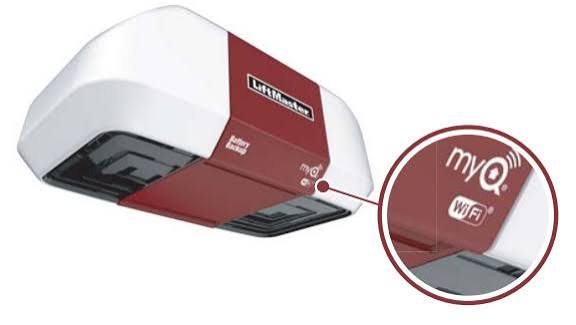
- Built-in WiFi: Models manufactured after 2017 typically have the MyQ logo on the motor housing. These connect directly to your router.
- MyQ Hub Required: Older models (typically 2011–2016) may be “MyQ Enabled” but lack an internal radio. You will need to purchase a MyQ Smart Garage Hub.
- Non-Compatible: Units older than 2011 generally require a full replacement or a universal smart controller.
Pro Tip: Check the learn button color on your motor unit. A yellow, red, or purple learn button usually indicates MyQ compatibility, whereas a green button often signifies an older, non-compatible frequency.
Step-by-Step: How To Connect A LiftMaster Garage Door Opener To WiFi
Follow this precise tutorial to get your system online. Ensure you have your WiFi password ready and are standing near the garage door opener during setup.
1. Download and Create a MyQ Account
- Download the myQ app from the Apple App Store or Google Play Store.
- Open the app and tap “Create Account.”
- Enter a valid email address and create a strong password.
- Verify your email through the link sent to your inbox.
2. Put the Opener into Programming Mode
This step varies slightly by model, but the most common method for built-in WiFi units is:
- Locate the Learn Button on the back or side of the motor unit (usually near the antenna wire).
- Press and hold the Learn button for approximately 6 seconds until the LED light turns off, then release.
- Press the Learn button again briefly. The LED should begin flashing blue, indicating it is in WiFi pairing mode.
- Note: If the light does not flash blue, consult your specific model’s manual, as some units require holding the button for different intervals.
3. Pair via the myQ App
- In the app, select “Add Device” > “Garage Door Opener” > “LiftMaster with Built-in WiFi.”
- The app will search for the flashing blue light signal.
- Select your home WiFi network (2.4GHz networks are strongly recommended over 5GHz for better range and penetration through garage walls).
- Enter your WiFi password accurately.
- Wait 30–60 seconds. The LED on the opener should turn solid blue, then eventually turn off, confirming a successful connection.
4. Test the Connection
Never assume the setup worked without verification. Stand outside WiFi range (or turn off WiFi on your phone) and use cellular data to open and close the door via the app. Confirm that status updates reflect accurately within 5 seconds.
Troubleshooting Common Connection Failures
Even professionals encounter hiccups. Here is a comparison of common issues and their fixes:
| Issue | Probable Cause | Recommended Fix |
|---|---|---|
| LED never flashes blue | Unit not in pairing mode | Reset power to opener; retry Learn button sequence |
| App cannot find device | Distance/Interference | Move closer; ensure 2.4GHz band is active |
| Connects then drops | Weak WiFi signal | Install WiFi extender in garage; check router channel |
| “Device Offline” error | Router firewall/IP change | Reboot router; assign static IP to opener if possible |
| Password rejected | Special characters | Temporarily simplify WiFi password; update later |
Expert Insight on Signal Strength
Garages are notoriously difficult environments for WiFi due to metal doors, concrete walls, and distance from the main router. A dedicated WiFi extender placed in the nearest interior room can reduce connection failures by up to 85%. Do not rely solely on your main router if it is located on the opposite side of the house.
Security Best Practices for Smart Garage Access
Connecting your garage to the internet introduces convenience but also requires vigilance. Cybersecurity experts recommend the following:
- Enable Two-Factor Authentication (2FA): Always activate 2FA in the myQ app settings. This prevents unauthorized access even if your password is compromised.
- Use Unique Credentials: Never reuse your email password for your MyQ account.
- Keep Firmware Updated: The myQ app automatically pushes firmware updates to compatible openers. These patches often address critical security vulnerabilities.
- Monitor Activity Logs: Regularly review the activity history in the app to spot any unusual access patterns immediately.
Frequently Asked Questions (FAQ)
Can I connect my LiftMaster opener to Alexa or Google Home?
Yes, but with caveats. As of recent policy changes, direct integration with Amazon Alexa requires a subscription or specific hub setup. Google Assistant integration remains more straightforward through the myQ app linking feature. Always check the latest compatibility list in the app, as partnerships evolve frequently.
Does connecting to WiFi affect my remote controls?
No. WiFi connectivity operates on a completely separate frequency and protocol from your traditional RF remotes and keypads. Your existing remotes will continue to work exactly as before, regardless of WiFi status.
What happens if my internet goes down?
Your garage door opener will continue to function normally with all physical remotes, wall buttons, and keypads. Only the smart features (remote app control, notifications) will be unavailable until internet service is restored. The opener does not depend on cloud connectivity for basic operation.
Is there a monthly fee for LiftMaster WiFi features?
Basic monitoring and control through the myQ app are free forever. However, premium features like video storage (if using MyQ cameras), advanced scheduling, or certain third-party integrations may require a subscription. Core garage door functionality never requires payment.
Why does my opener disconnect after power outages?
Most modern LiftMaster units auto-reconnect once power and internet are restored. If yours doesn’t, the WiFi credentials may have been cleared during the surge. Simply repeat the pairing process outlined above. Consider installing a UPS battery backup for your router and opener to maintain connectivity during brief outages.
Can multiple family members control the same opener?
Absolutely. The primary account holder can invite up to 15 additional users via email through the myQ app. Each user gets their own login, and you can set individual permissions (e.g., allow opening/closing but disable settings changes). This is ideal for families, dog walkers, or delivery personnel.
Conclusion
Learning how to connect a LiftMaster garage door opener to WiFi transforms one of the most overlooked entry points of your home into an intelligent, secure, and convenient asset. From eliminating departure anxiety to enabling package deliveries, the benefits far outweigh the 10-minute setup process. Remember to prioritize signal strength, enable 2FA, and test thoroughly before relying on remote access.
Found this guide helpful? Share it with friends and family who still wonder if they closed the garage! Tag us on social media with your successful setup photos, and don’t forget to bookmark this page for future troubleshooting. Your smart home journey starts with a single click—make it count! 🏠📱
Leave a Reply