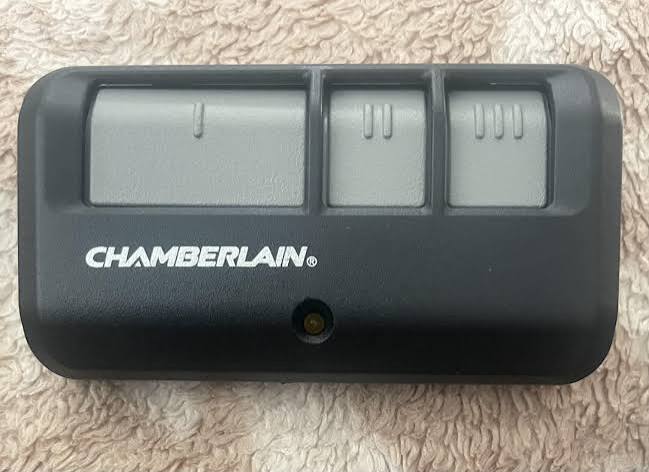
Have you ever stood in the rain, pressing your garage remote repeatedly, only to hear silence? It is a frustrating experience that many homeowners face when their garage door opener loses its connection. If you are asking yourself, “How do I program my garage door opener Chamberlain,” you are not alone. This guide will walk you through the process clearly and safely, ensuring you regain control of your garage in minutes.
Understanding Your Chamberlain Model
Before diving into the programming steps, it is crucial to identify which type of Chamberlain opener you have. Chamberlain produces several models, including belt-drive, chain-drive, and screw-drive openers. While the core programming logic remains similar, the location of the “Learn” button can vary.
Most modern Chamberlain openers feature a Learn Button located on the motor unit. This button is typically colored yellow, purple, orange, or red. Identifying this color is the first step in successful programming because different colors may indicate different security protocols (such as Security+ 2.0).
Pro Tip: If you cannot find the manual, look for the model number on the back or side of the motor unit. You can often download specific PDF guides from the official Chamberlain support site using this number.
Step-by-Step: How to Program a Standard Remote
Programming a standard handheld remote is the most common task. Follow these precise steps to ensure a successful sync.
Step 1: Locate the Learn Button
Climb a sturdy ladder to access the motor unit mounted on your garage ceiling. Look for the small button labeled “Learn.” It is usually situated near the antenna wire hanging from the unit.
Step 2: Clear Old Codes (If Necessary)
If you are replacing a lost remote or suspect interference, it is best to clear the memory first.
- Press and hold the Learn Button for about 6–10 seconds.
- Wait until the indicator light next to the button turns off.
- Release the button. All previously programmed remotes and keypads are now erased.
Step 3: Initiate Programming Mode
- Press the Learn Button once briefly and release it.
- The indicator light will turn on or start blinking. You typically have 30 seconds to complete the next step.
Step 4: Sync the Remote
- Within those 30 seconds, press and hold the button on your remote that you wish to use.
- Hold it for 2–3 seconds.
- Watch the motor unit’s light. It should blink or click, confirming the code has been accepted.
Step 5: Test the Connection
Press the remote button again. The garage door should activate. If it does not, repeat Steps 3 and 4, ensuring you are within range of the motor unit.
Programming a Wireless Keypad
Many homeowners prefer wireless keypads for guests or family members who do not carry remotes. The process is slightly different but equally straightforward.
- Enter Programming Mode: Press the Learn Button on the motor unit. The light will illuminate.
- Input Your PIN: On the keypad, enter your desired 4-digit PIN.
- Confirm the Code: Press the “Enter” or “Program” button on the keypad immediately after entering the PIN.
- Verification: The motor unit light should blink or turn off, indicating success. Test the keypad by entering the PIN and pressing Enter.
| Feature | Standard Remote | Wireless Keypad |
|---|---|---|
| Portability | High (fits in pocket) | Low (mounted on wall) |
| Security | Rolling Code Technology | Fixed or Rolling Code |
| Best For | Daily drivers | Guests & backup access |
| Battery Life | 1–2 years | 1–3 years |
Troubleshooting Common Issues
Even with careful following of instructions, things can go wrong. Here are solutions to the most frequent problems.
The Remote Won’t Program
If the light on the motor unit does not blink when you press the remote button, check the following:
- Battery Strength: Replace the battery in the remote with a fresh one. Weak batteries often fail to send a strong enough signal during programming.
- Interference: LED light bulbs in the garage can sometimes interfere with radio frequencies. Try turning off the garage lights while programming.
- Distance: Stand closer to the motor unit (within 5 feet) during the programming process.
The Door Reverses Immediately
If the door starts to close but then reverses back up, it is likely a safety sensor issue, not a programming error. Ensure the sensors near the floor are aligned and clean. For more technical details on safety standards, you can refer to general garage door safety guidelines on Wikipedia.
The Learn Button Light Is Not On
If the Learn button light does not illuminate when pressed, the logic board may be faulty, or the unit may not be receiving power. Check the circuit breaker and ensure the unit is plugged in securely.
Advanced Features: MyQ and Smart Home Integration
Modern Chamberlain openers often come with MyQ technology, allowing you to control your garage via smartphone. Programming this feature requires a different approach.
- Download the App: Install the MyQ app from the Apple App Store or Google Play Store.
- Create an Account: Sign up with your email address.
- Add Device: Tap the “+” icon and select “Garage Door Opener.”
- Follow On-Screen Prompts: The app will guide you through connecting your opener to your Wi-Fi network. You may need to press the Learn Button on the motor unit as part of this digital handshake.
Integrating with smart home systems like Amazon Alexa or Google Assistant allows for voice commands. Simply link your MyQ account within the respective smart home app to enable features like “Alexa, close the garage door.”
Security Best Practices
Programming your garage door is not just about convenience; it is about security. Chamberlain uses rolling code technology, which changes the access code every time you use the remote. This prevents hackers from capturing and replaying your signal.
- Change Default PINs: If using a keypad, never use “1234” or “0000.”
- Regularly Update Batteries: A weak remote signal can sometimes fail to trigger the rolling code update properly.
- Monitor Activity: Use the MyQ app to receive notifications whenever the garage door opens or closes. This helps you detect unauthorized access immediately.
FAQ Section
How do I reset my Chamberlain garage door opener completely?
To perform a full reset, locate the Learn Button on the motor unit. Press and hold it for approximately 10 seconds until the indicator light turns off. This erases all paired remotes and keypads, returning the unit to its factory default state. You will need to reprogram all devices afterward.
Why is my Chamberlain remote not working after changing the battery?
After changing the battery, you may need to re-sync the remote. Press the Learn Button on the motor unit, then press and hold the remote button within 30 seconds. If it still fails, ensure the battery is inserted correctly with the positive (+) side facing up.
Can I program a universal remote to my Chamberlain opener?
Yes, most universal remotes are compatible with Chamberlain openers. You will need to follow the specific instructions provided with the universal remote, which usually involve setting dip switches or entering a specific code found in the remote’s manual that matches Chamberlain’s frequency.
What does it mean if the Learn button light is blinking rapidly?
A rapidly blinking light often indicates that the motor unit is in “lock mode” or that there is a fault in the system. Consult your owner’s manual for specific error codes. Sometimes, simply unplugging the unit for 30 seconds and plugging it back in can resolve temporary glitches.
How many remotes can I program to one Chamberlain opener?
Most Chamberlain openers can store up to 8–10 remote controls and keypads combined. Check your specific model’s manual for the exact limit. If you reach the limit, you must clear old codes before adding new ones.
Conclusion
Learning how do I program my garage door opener Chamberlain is a valuable skill that saves time and money. By following the steps outlined above, you can easily sync remotes, keypads, and smart devices. Remember to prioritize safety by keeping your codes secure and maintaining your hardware.
If this guide helped you get your garage door working again, please share it with friends and family on social media. They might be struggling with the same issue! Stay safe, and enjoy the convenience of a fully functional garage door.
Leave a Reply