If you’ve ever wondered How To Program My Garage Door Opener To My Car, you’re not alone. Many drivers struggle with syncing their vehicle’s built-in remote system to their garage door opener, especially when dealing with different brands and models.
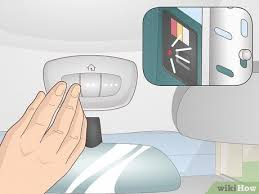
The good news is that the process is usually straightforward once you understand the steps. In this guide, you’ll learn how to safely and correctly program your car to open your garage door in just a few minutes.
Read too: How Do You Change Code On Garage Door Keypad Fast?
What Does It Mean to Program a Garage Door Opener to a Car?
Programming your garage door opener to your car means syncing your vehicle’s built-in transmitter (often called a smart button system) with your garage door receiver.
Most modern cars use systems like HomeLink, which allows you to control garage doors, gates, and even home lighting directly from your vehicle.
For reference, HomeLink is a widely used wireless control system integrated into vehicles to simplify remote access systems.
Instead of carrying a separate remote, you can open your garage with a single button inside your car.
Why Should You Program Your Garage Door Opener to Your Car?
Here are some key benefits:
- Convenience: No need for a separate remote
- Safety: Open your garage without leaving your car
- Security: Reduces risk of losing physical remotes
- Modern integration: Works with smart home systems in newer vehicles
Expert Insight
According to automotive user experience studies, integrated systems like in-car garage controls can reduce user task time by up to 40% compared to traditional remotes, improving both safety and convenience.
Before You Start: Check Compatibility
Before learning How To Program My Garage Door Opener To My Car, make sure:
✔ Your Car Has Built-in Remote System
Most systems include:
- HomeLink (common in Toyota, Honda, BMW, Ford, Mercedes)
- Car2U (found in select GM vehicles)
✔ Your Garage Door Opener is Compatible
Most garage openers manufactured after 1995 support rolling code systems.
✔ You Have Your Original Remote
You will need it during the programming process.
Step-by-Step Guide: How To Program My Garage Door Opener To My Car
Below is the standard method used in most vehicles.
Step 1: Clear Previous Programming (If Needed)
Before starting fresh:
- Turn on your vehicle ignition
- Hold down the two outer HomeLink buttons
- Wait 10–20 seconds until the indicator light flashes
This resets any previous programming.
Step 2: Position Your Remote
- Place your garage remote 1–3 inches away from the car’s HomeLink buttons
- Ensure both devices have fresh batteries for smooth signal transfer
Step 3: Start Programming Mode
- Press and hold the button you want to program inside your car
- While holding it, press and hold your garage remote button
- Wait until the indicator light changes from slow to rapid flashing
This means the signal has been successfully learned.
Step 4: Sync with Garage Door Receiver
Some garage systems require an additional step:
- Locate the “Learn” button on your garage motor
- Press it once (do not hold it)
- Within 30 seconds, press the programmed button in your car
Your garage door should respond immediately.
Step 5: Test the System
- Press your car’s programmed button
- Check if the garage door opens/closes smoothly
- Repeat steps if necessary
Common Problems and Troubleshooting
Even if you follow the steps correctly, issues can happen.
Problem 1: Garage Door Doesn’t Respond
Solution:
- Recheck compatibility
- Repeat “Learn button” sync process
- Replace remote battery
Problem 2: Light Doesn’t Flash
Solution:
- Hold buttons closer together
- Restart programming mode
- Ensure ignition is ON
Problem 3: Works Sometimes but Not Always
Possible Cause:
- Signal interference from LED lights or Wi-Fi routers
Fix:
- Move car closer to garage door during setup
- Reprogram system
Comparison: Manual Remote vs Car Programming
| Feature | Manual Remote | Car Programming |
|---|---|---|
| Convenience | Medium | High |
| Security | Medium | High |
| Battery Dependency | Yes | No |
| Ease of Use | Simple | Very Simple |
Safety Tips When Programming Garage Door Opener
- Always keep the garage area clear during testing
- Avoid standing under a moving garage door
- Do not let children operate the system during setup
- Ensure vehicle is parked securely
Advanced Tips for Better Performance
If you want a smoother experience:
✔ Use Fresh Batteries
Weak batteries can interrupt signal transmission.
✔ Avoid Signal Interference
Keep away from:
- Wi-Fi routers
- LED garage lights
- Metal objects
✔ Update Your Vehicle System (If Available)
Some newer cars allow software updates that improve HomeLink performance.
When Should You Reprogram Your Garage Opener?
You may need to reprogram if:
- You change your garage motor
- You replace your car battery
- The system stops responding
- You move to a new home
FAQ: How To Program My Garage Door Opener To My Car
1. How long does it take to program a garage door opener to a car?
Usually, it takes 5–15 minutes depending on your garage system type and vehicle model.
2. Do all cars support garage door programming?
No. Only vehicles with built-in systems like HomeLink or Car2U support this feature.
3. Why is my garage door opener not syncing with my car?
This can be due to battery issues, signal interference, or incompatible rolling code systems.
4. Can I program multiple garage doors in one car?
Yes, most systems allow up to 3 different garage doors or gates.
5. Do I need Wi-Fi to program my garage door opener?
No, the system uses radio frequency signals, not internet connectivity.
6. Is programming my garage opener safe?
Yes, as long as you follow safety steps and ensure the garage area is clear during testing.
Conclusion
Learning How To Program My Garage Door Opener To My Car is a simple but powerful upgrade for your daily convenience. With just a few steps, you can eliminate the need for handheld remotes and enjoy seamless access to your garage.
Whether you’re upgrading your vehicle or setting up a new home, this feature adds safety, efficiency, and modern convenience to your driving experience.
If you found this guide helpful, consider sharing it with others who might be struggling with the same setup.
Leave a Reply