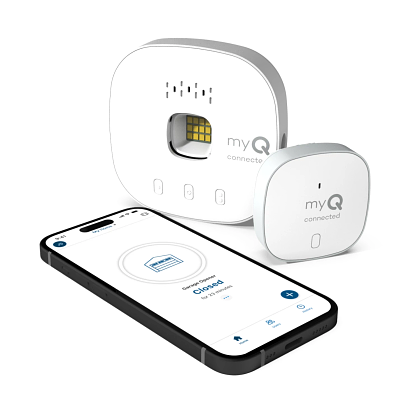
Are you tired of constantly worrying if you left the garage door open after driving away? It is a common frustration for many modern homeowners trying to upgrade their living spaces. Fortunately, learning how to connect my Chamberlain garage door opener to WiFi is a straightforward process that brings immense peace of mind. Let’s dive into this simple setup so you can start controlling your home’s main entry point right from your palm.
How To Connect My Chamberlain Garage Door Opener To Wifi: The Ultimate Guide
Before we press any buttons, it is essential to understand the ecosystem of your device. Most modern Chamberlain openers rely on myQ technology to bridge the gap between your physical garage and your digital smartphone.
Crucial Pre-Setup: Checking Your Safety Sensors
Before you climb the ladder to press the Learn button, you must verify your physical safety sensors. Chamberlain openers are equipped with infrared beams located near the floor on both sides of the door track.
If these sensors are misaligned, blocked by a stray trash can, or covered in cobwebs, the physical remote might still work. However, the smartphone app will refuse to close the door remotely. This is a built-in safety feature to prevent the door from closing on a person or pet while you are not physically present.
- Ensure both sensor LEDs are glowing steadily (usually solid green and solid amber).
- Wipe the lenses gently with a soft microfiber cloth.
- Clear any debris within two inches of the invisible beam path.
Step 1: Verify Your Equipment and Network
Not all routers are created equal. Your Chamberlain opener specifically requires a 2.4 GHz WiFi network. Many modern routers broadcast both 2.4 GHz and 5 GHz bands simultaneously. If your phone is connected to the 5 GHz band during setup, the connection will inevitably fail.
Ensure your smartphone is connected to the 2.4 GHz network before launching the app.
Checklist for success:
- A compatible Chamberlain or LiftMaster opener (look for the myQ logo).
- A stable 2.4 GHz home internet connection.
- An iOS or Android smartphone.
- A sturdy step ladder to reach the motor unit safely.
Step 2: Download and Install the myQ App
Head over to the Apple App Store or Google Play Store and download the official myQ app. This application acts as the central hub for your smart home security. Once downloaded, open the app and create a free account using your primary email address.
Make sure to use a strong, unique password to keep your home secure. Enable two-factor authentication if the app prompts you to do so for an extra layer of digital protection.
Step 3: Put the Opener into Pairing Mode
This is where the physical work begins. Safely position your step ladder beneath the garage door motor. Locate the “Learn” button on the back or side of the motor unit. The button is usually yellow, red, purple, or orange, depending on your specific model’s manufacturing year.
- Press and release the Learn button. The indicator LED light will turn on.
- Press and hold the Learn button again for about 2 to 3 seconds until the LED light starts flashing rapidly.
- You now have exactly 180 seconds (3 minutes) to complete the next steps in the app, so keep your phone ready!
Step 4: Complete the Digital Handshake
Return to your smartphone. The myQ app will search for the flashing garage door opener. Once it detects the device, the app will prompt you to select your home WiFi network and enter the password.
- Pro Tip: Double-check for typos in your WiFi password. A single wrong character is the leading cause of failed setups.
After entering the credentials, the app will configure the device. You will hear a distinct click from the garage door motor, and the lights will flash, confirming a successful pairing.
Step 5: Name Your Device and Test
Finally, assign a recognizable name to your device, such as “Main Garage” or “Detached Workshop.” This is especially useful if you plan to add more smart devices later.
Press the digital open/close button in the app to test the connection. If the door moves smoothly, congratulations! You have successfully upgraded your home.
Why Smart Garage Integration Matters for Home Security
Upgrading your garage is about more than just convenience; it is a critical layer of home defense. According to a 2025 report by the Electronic Security Association, nearly 30% of homeowners experience anxiety about whether their garage doors are closed while on vacation.
Integrating your garage door into a broader smart home ecosystem drastically reduces this stress.
“As modern homes become increasingly automated, the garage is no longer just a place to park your car,” explains Mark Stevens, a Senior IoT Security Analyst. “A WiFi-enabled garage door transforms a vulnerable entry point into a monitored, secure gateway. It provides real-time alerts and historical data logs that traditional openers simply cannot match, effectively reducing opportunistic break-ins.”
Real-World Case Study: The Smith Family’s Peace of Mind
Consider the case of the Smith family from suburban Ohio. After experiencing a string of “porch pirate” incidents in their neighborhood, they decided to proactively secure their property. By figuring out the exact steps to link their Chamberlain unit to their home network, they integrated it seamlessly with their existing outdoor security cameras.
Now, whenever the myQ app sends a push notification that the garage door is opening, their driveway camera automatically wakes up and starts recording in high definition. This simple, automated integration provided the timestamped evidence they needed to deter local trespassers and significantly boosted their overall sense of security while traveling for work.
Pros and Cons of WiFi-Enabled Chamberlain Openers
Before you fully commit to daily app usage, it is wise to weigh the benefits against potential drawbacks. Here is a quick comparison to help you manage your expectations.
| Feature | Pros | Cons |
|---|---|---|
| Convenience | Open or close your door from anywhere in the world. | Relies entirely on your home internet connection. |
| Security | Receive instant alerts if the door is left open. | Vulnerable to WiFi hacking if passwords are weak. |
| Scheduling | Set automatic close times (e.g., 10 PM every night). | Software updates occasionally require re-pairing. |
| Guest Access | Grant temporary digital keys to friends or dog walkers. | App interface can be overwhelming for elderly users. |
Troubleshooting Common Connection Issues
Even the best technology can act up occasionally. If your initial setup fails, do not panic. Most issues stem from simple network misconfigurations. Here is how to solve the most frequent hurdles.
The 5 GHz Network Trap
As mentioned earlier, Chamberlain openers do not support 5 GHz networks. If your router uses a single network name (SSID) for both bands, your opener might get confused.
Log into your router’s admin settings and temporarily separate the 2.4 GHz and 5 GHz bands. Give the 2.4 GHz band a unique name like “HomeWiFi_2.4G”, connect your phone to it, and try the setup again.
Weak Signal Strength in the Garage
Garages are often detached or built with thick concrete walls that block wireless signals. If the myQ app cannot find your opener, your WiFi signal might be too weak.
- Test the signal: Stand in your garage with your smartphone and run a speed test. If your download speed is below 5 Mbps, you need a WiFi extender.
- Solution: Install a plug-in WiFi range extender halfway between your router and the garage door motor.
The “Learn” Button Glitch
Sometimes the logic board in the motor unit gets stuck in a loop. If the LED light won’t flash, try a hard reset. Unplug the opener from the power outlet for exactly 60 seconds. Plug it back in, wait for the lights to stabilize, and attempt the pairing process from the beginning.
Frequently Asked Questions (FAQ)
1. Can I connect my Chamberlain opener to a 5GHz WiFi network? No, Chamberlain and myQ devices are strictly designed to operate on 2.4 GHz networks. The 2.4 GHz frequency provides better range and wall penetration, which is necessary for garage environments. Attempting to use a 5 GHz network will result in continuous connection errors.
2. What if my Chamberlain opener doesn’t have a WiFi logo? If your unit is older and lacks the built-in myQ logo, it does not have native WiFi capabilities. However, you can easily upgrade it by purchasing a myQ Smart Garage Control hub. This small device mounts to your ceiling and wires directly into your existing opener, instantly giving it smart features.
3. Is the myQ app free to use? Yes, the basic myQ app is completely free to download and use. It provides core functionalities like remote opening, closing, and real-time alerts. Chamberlain does offer premium third-party integrations, but the standard app features do not require a monthly subscription.
4. How do I reset my Chamberlain garage door WiFi connection? To erase the current WiFi settings, press and hold the “Learn” button on the motor unit until the LED light turns off (usually about 6 to 10 seconds). Once the light goes out, release the button. The opener has now forgotten your network, and you can start the pairing process fresh.
5. Will my garage door work if the internet goes down? Absolutely. Your Chamberlain opener will still function normally using your physical remotes and wall-mounted control panel. The WiFi connection only affects remote access via the smartphone app; it does not disable the mechanical operation of the door.
Conclusion: Enjoy Your Upgraded Smart Home
Learning how to connect my Chamberlain garage door opener to WiFi is one of the most rewarding weekend projects a homeowner can tackle. You have transformed an ordinary, heavy piece of machinery into an intelligent guardian of your property. From stopping package thieves to ensuring you never sleep with an open garage again, the benefits are truly life-changing.
Remember to keep your myQ app updated and occasionally check your router’s firmware to maintain a seamless connection. Your home’s security is in your hands, and now, it is right on your screen.
Did you find this step-by-step guide helpful? Share this article on your favorite social media platforms like Facebook, X (Twitter), or Pinterest to help your friends and family secure their homes too! Drop a comment below if you have any unique setup tricks we missed.
Leave a Reply