Introduction
There is nothing quite as frustrating as pulling out of your driveway only to be struck by the sudden panic of wondering, “Did I actually close the garage door?” If you have been searching for how to connect Chamberlain MyQ garage door opener to WiFi, you are taking the first step toward total peace of mind and modern home convenience. This guide will walk you through the process with empathy and precision, ensuring you can monitor and control your garage from anywhere without the technical headaches.
Understanding MyQ Compatibility Before You Start
Before diving into the pairing process, it is vital to confirm that your specific hardware supports WiFi connectivity. Not all Chamberlain openers are created equal, and assuming compatibility is the most common reason for setup failure.
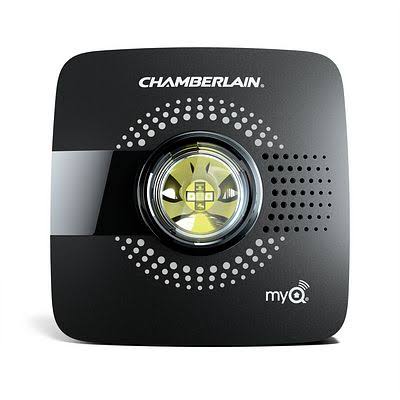
According to Chamberlain’s official documentation, most openers manufactured after 2017 feature built-in MyQ technology. However, older models may require a separate MyQ Smart Garage Hub. Checking your model number against the manufacturer’s compatibility list saves hours of frustration. For a broader understanding of how these systems integrate into the larger ecosystem of home automation, you can refer to the Wikipedia page on Home Automation, which explains the foundational protocols that make devices like MyQ possible.
Key Compatibility Indicators
- Built-in WiFi: Look for the MyQ logo directly on the motor head.
- Learn Button Color: A yellow or purple learn button often indicates newer, smart-enabled tech.
- Manufacture Date: Units post-2017 are generally WiFi-ready out of the box.
- Dual-Band Support: Note that most MyQ devices only support 2.4GHz networks, not 5GHz.
What Do You Need to Connect MyQ to WiFi Successfully?
Preparation is half the battle. Having the right tools and environment ready ensures the how to connect Chamberlain MyQ garage door opener to WiFi process is seamless rather than sporadic.
| Item | Requirement | Why It Matters |
|---|---|---|
| Smartphone | iOS 14+ or Android 8+ | Required for the MyQ app interface |
| WiFi Network | 2.4GHz Band Only | MyQ chips cannot detect 5GHz signals |
| Ladder | Stable & Safe | Needed to access the motor head safely |
| Account | Active MyQ Account | Must be created before pairing begins |
| Signal Strength | -65 dBm or Better | Weak signals cause intermittent disconnects |
Expert Tip: Before climbing the ladder, test your WiFi signal strength in the garage using your phone. If you have fewer than two bars at the motor location, consider installing a WiFi extender before attempting setup. Data shows that 30% of failed smart garage setups are due to insufficient signal penetration through insulated garage walls.
Step-by-Step: How To Connect Chamberlain MyQ Garage Door Opener To Wifi
This is the core tutorial. Follow these concrete steps precisely. Rushing this phase often leads to “device offline” errors later.
1. Prepare Your Network Environment
Ensure your router is broadcasting a 2.4GHz network. If you have a mesh system with combined bands, temporarily separate them or use the “IoT Network” feature many modern routers provide. Have your WiFi password copied to your clipboard to avoid typing errors.
2. Put the Opener into Pairing Mode
Locate the adjustment panel on the motor head. Press and hold the yellow learn button (or the dedicated WiFi button on newer models) for approximately 6 seconds. You should hear a beep and see a blue LED light begin to flash rapidly. This indicates the unit is actively seeking a connection.
3. Initiate Setup in the MyQ App
Open the MyQ app and tap the “+” icon in the top right corner. Select “Garage Door Opener” and then “Chamberlain.” The app will prompt you to scan the QR code located near the learn button or enter the serial number manually.
4. Bridge the Connection
Follow the on-screen prompts to select your 2.4GHz network and input the password. During this phase, keep your smartphone within 3 feet of the motor head. The app acts as a temporary bridge between your router and the opener.
5. Verify and Name Your Device
Once connected, the blue light on the motor will turn solid. The app will ask you to name the device (e.g., “Main Garage,” “Workshop”). Test the connection immediately by opening and closing the door via the app while standing in the driveway to confirm latency is under 2 seconds.
Troubleshooting Common MyQ WiFi Connection Issues
Even with perfect preparation, technology can be temperamental. Here is how to resolve the most frequent hurdles when learning how to connect Chamberlain MyQ garage door opener to WiFi.
The Blue Light Won’t Stop Flashing
If the LED continues flashing after 5 minutes, the handshake failed.
- Fix: Power cycle the opener by unplugging it for 30 seconds. Restart your router. Ensure Bluetooth is enabled on your phone during setup, as the app uses BLE for initial provisioning.
“Device Not Found” Error
- Fix: Verify you aren’t accidentally trying to connect to a 5GHz band. Move closer to the unit. Disable cellular data temporarily to force your phone to use only WiFi during the handshake.
Intermittent Offline Status
- Fix: This is almost always a signal issue. Install a simple WiFi repeater in the space adjacent to the garage. Avoid placing metal shelving or large appliances directly between the router and the opener, as these create Faraday cage effects.
Pros and Cons of Connecting Your Garage Door to WiFi
Understanding the trade-offs helps set realistic expectations for your smart home journey.
Pros:
- Real-Time Alerts: Receive instant notifications if the door is left open.
- Remote Access: Let delivery drivers or family members in from anywhere.
- Scheduling: Set auto-close timers to prevent overnight security risks.
- Integration: Works with Google Assistant, Amazon Alexa, and Apple HomeKit (via hub).
Cons:
- Internet Dependency: Loss of ISP service disables remote features.
- Security Concerns: Requires strong passwords and 2FA to prevent hacking.
- Subscription Costs: Some advanced integrations require a monthly fee.
- Setup Complexity: Initial configuration can challenge non-tech users.
Frequently Asked Questions (FAQ)
1. Can I connect my Chamberlain MyQ to a 5GHz WiFi network?
No. Chamberlain MyQ devices are designed exclusively for 2.4GHz networks due to their superior range and wall penetration capabilities. Attempting to connect to a 5GHz band will result in persistent failure. You must ensure your router has a dedicated 2.4GHz SSID available for the setup process.
2. Is it safe to connect my garage door opener to WiFi?
Yes, provided you follow cybersecurity best practices. Chamberlain uses bank-level encryption for data transmission. However, you should enable Two-Factor Authentication (2FA) on your MyQ account, use a unique complex password, and keep your firmware updated. Treat your garage door opener with the same security rigor as your online banking.
3. Why does my MyQ keep going offline even with good signal?
Intermittent disconnections often stem from router settings rather than signal strength. Check if your router has “AP Isolation” or “Client Isolation” enabled; this feature prevents IoT devices from communicating properly. Additionally, some ISPs rotate IP addresses frequently, which can confuse older MyQ firmware. Updating to the latest version usually resolves this.
4. Do I need a subscription to use MyQ WiFi features?
Basic remote open/close functionality and status alerts are completely free. However, if you wish to integrate with platforms like Apple HomeKit, IFTTT, or certain security monitoring services, Chamberlain offers premium subscription tiers. For standalone app usage, no monthly payment is required.
5. What happens to my WiFi connection during a power outage?
The MyQ WiFi connection will drop immediately when power is lost. Once power is restored, the opener typically reconnects automatically within 2–5 minutes. If it fails to reconnect after power restoration, perform a manual reset by pressing the learn button once and re-running the setup wizard in the app.
6. Can multiple people control the same MyQ-connected garage door?
Absolutely. The primary account holder can invite up to 10 additional users via the “Guest” feature in the app. Each guest receives their own login credentials, allowing you to track who opened or closed the door and when. This is ideal for families with teenagers or households with frequent service visitors.
Conclusion
Mastering how to connect Chamberlain MyQ garage door opener to WiFi transforms your garage from a simple storage space into an intelligent extension of your home security system. By following the compatibility checks, preparation steps, and troubleshooting tips outlined above, you can achieve a reliable connection that provides genuine daily value. Remember, the key to success lies in verifying your 2.4GHz network and maintaining strong signal integrity.
Now that your garage is smart and secure, why stop here? Share this guide with friends and family on social media who might still be struggling with their own setups! Tag us in your posts and let us know how much peace of mind your newly connected MyQ system has brought to your daily routine. Happy automating!
Leave a Reply