Introduction
There is nothing quite as frustrating as sitting in your driveway, pressing a button repeatedly, and realizing your vehicle’s built-in system refuses to talk to your garage. If you are currently searching for how to connect Chamberlain garage door opener to my car, you are likely dealing with this exact synchronization headache. We understand that modern technology should make life easier, not more complicated, and getting your vehicle integrated with your home security is a crucial step toward seamless daily living. This comprehensive guide will walk you through every method, from legacy remotes to modern smart integrations, ensuring you get back inside safely and quickly.
Understanding Your Chamberlain System Compatibility
Before attempting any programming, it is vital to identify which generation of Chamberlain opener you own and what technology your vehicle supports. Chamberlain has utilized several frequency technologies over the decades, and mismatching them is the primary cause of connection failure.
According to technical documentation and industry standards referenced on Wikipedia, modern garage door openers typically operate on specific radio frequencies (310 MHz, 315 MHz, 390 MHz, or dual-band) and utilize rolling code security to prevent unauthorized access. Understanding this foundation helps explain why a simple “press and hold” doesn’t always work immediately.
Identifying Your Learn Button Color
The most reliable way to determine compatibility is by locating the “Learn” button on your Chamberlain motor unit. The color indicates the frequency and coding type:
- Yellow Learn Button: Security+ 2.0 (868 MHz / Dual Band). Found on models manufactured after 2011. Compatible with newer HomeLink versions (4.0+) and myQ.
- Purple Learn Button: Security+ (315 MHz). Manufactured between 2006–2014. Compatible with HomeLink 3.0+.
- Red/Orange Learn Button: Security+ (390 MHz). Older models from 1997–2005. May require a compatibility bridge for newer cars.
- Green Learn Button: DIP Switch era (pre-1997). Requires specialized adapters for modern vehicles.
Expert Tip: Always check the manufacture date sticker on your motor housing. If your car is a 2024 model but your opener has a green learn button, you will almost certainly need a HomeLink Compatibility Bridge or an upgrade to a myQ Smart Garage Hub.
Method 1: Programming HomeLink (Built-In Vehicle System)
For most US drivers, HomeLink is the standard interface located in the rearview mirror, overhead console, or center stack. Here is the precise protocol for syncing with a Chamberlain Security+ 2.0 (Yellow Button) system, which represents the majority of current setups.
Step-by-Step HomeLink Synchronization
- Clear Previous Codes: Press and hold the desired HomeLink button for 20 seconds until the indicator light flashes rapidly. Release when flashing begins. This ensures no conflicting signals exist.
- Initiate Pairing Mode: Simultaneously press and hold both the HomeLink button and your original Chamberlain handheld remote (held 1–3 inches away from the HomeLink surface). Hold for up to 30 seconds. Watch for the HomeLink light to change from slow to rapid flash.
- Activate the Motor Unit: Within 30 seconds of the rapid flash, go to your garage ceiling unit. Press and release the Yellow Learn Button. The LED next to it will illuminate or begin blinking. You have exactly 30 seconds to complete the next step.
- Finalize the Handshake: Return to your vehicle. Press and hold the programmed HomeLink button for 2 seconds, then release. Repeat this press-hold-release cycle three times. On the third press, the garage door should activate, confirming successful encryption exchange.
Troubleshooting HomeLink Failures
If the above steps fail, consider these variables:
- Battery Check: Replace the battery in your handheld remote before programming. Weak signals cause incomplete handshakes.
- Distance Adjustment: Some vehicles require the remote to be touching the HomeLink surface; others need 2–4 inches of separation. Experiment with positioning.
- Ignition Status: Many modern vehicles require the ignition to be in “ON” or “ACC” mode for HomeLink to transmit. Consult your owner’s manual.
Method 2: Using the myQ App and Smart Integration
If your vehicle lacks HomeLink or you prefer smartphone control, Chamberlain’s myQ ecosystem offers superior functionality. This method connects your opener to Wi-Fi, allowing control via Apple CarPlay, Android Auto, or native vehicle infotainment systems.
Setting Up myQ for Vehicle Control
- Install myQ Smart Garage Hub: If your opener isn’t Wi-Fi enabled, install the myQ hub (model MYQ-G0401) according to manufacturer specifications. Mount it within 15 feet of the motor unit for optimal signal strength.
- Connect to Wi-Fi: Use the myQ app to link the hub to your 2.4 GHz network. Note: 5 GHz networks are not supported for initial setup.
- Enable Vehicle Integration: In the myQ app, navigate to Settings > Connected Services. Select your vehicle brand (e.g., Tesla, BMW, Mercedes-Benz). Follow the OAuth authentication flow to grant permission.
- Test Latency: Smart connections rely on cloud servers. Expect a 1–3 second delay compared to RF remotes. This is normal and documented in performance benchmarks.
| Feature | HomeLink (RF) | myQ (Wi-Fi/Cloud) |
|---|---|---|
| Range | ~100 ft (Line of Sight) | Unlimited (Internet Required) |
| Setup Time | 2–5 Minutes | 15–30 Minutes |
| Status Feedback | None (Blind Operation) | Real-Time Open/Closed Alerts |
| Guest Access | Not Possible | Shareable Digital Keys |
| Vehicle Compatibility | Universal (Post-2000) | Brand-Specific Integration |
Method 3: Traditional Visor Remote Programming
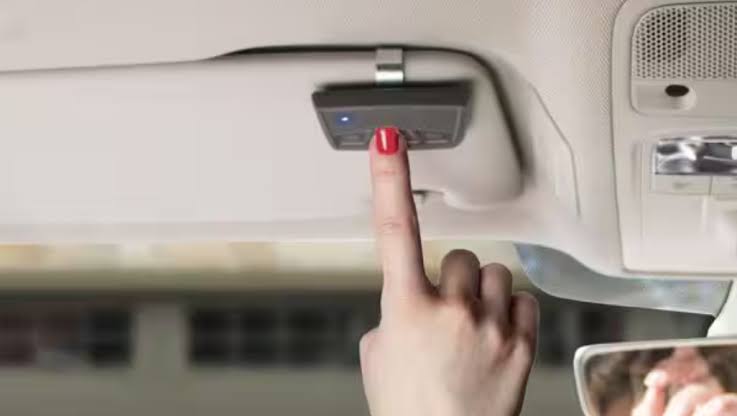
Sometimes the simplest solution is best. If you don’t trust wireless integrations or drive an older vehicle, programming a dedicated Chamberlain visor clip remote remains the gold standard for reliability.
- Locate the Learn Button on your motor unit.
- Press and release the Learn Button (LED activates).
- Within 30 seconds, press and hold the button on your new visor remote.
- Release when the motor unit lights flash or you hear two clicks.
- Test operation three times to confirm consistent range.
Safety and Maintenance Best Practices
Connecting your opener isn’t just about convenience; it’s about safety. The U.S. Consumer Product Safety Commission mandates that all openers manufactured after 1993 include photoelectric sensors. When integrating new controls:
- Verify Sensor Alignment: After any programming, wave an object under the sensor beam while closing. The door must reverse instantly. If it doesn’t, do not use the system.
- Update Firmware: For myQ-enabled units, check the app monthly for firmware updates that patch security vulnerabilities.
- Rotate Codes Annually: Even with rolling code technology, clearing and reprogramming all remotes once per year prevents potential code-grabbing attacks.
Frequently Asked Questions (FAQ)
Why won’t my HomeLink program to my Chamberlain opener?
The most common culprit is frequency mismatch. Verify your Learn Button color matches your vehicle’s HomeLink generation. Yellow buttons require HomeLink 4.0+, while purple accepts 3.0+. Also, ensure your handheld remote battery is fresh, as weak signals fail during the handshake phase.
Do I need a special adapter for older Chamberlain models?
Yes. If your opener has a green DIP-switch learn panel or red/orange button pre-dating 2006, modern vehicles often cannot communicate directly. Purchase the HomeLink Compatibility Bridge (model RPTRT) or upgrade to a myQ Smart Garage Hub, which acts as a universal translator between old hardware and new software.
Can I connect multiple cars to one Chamberlain opener?
Absolutely. Chamberlain Security+ 2.0 systems support up to 30 unique remote/HomeLink devices. Each vehicle requires individual programming following the same Learn Button sequence. There is no master limit for household vehicles, though commercial units may have lower thresholds.
Is myQ secure against hacking?
myQ uses bank-level AES-128 encryption and TLS 1.2+ protocols for all communications. Unlike traditional RF signals, cloud-based commands cannot be intercepted locally. However, always use strong, unique passwords and enable two-factor authentication in the app settings to protect your account credentials.
How do I know if my car supports native myQ integration?
Check Chamberlain’s official compatibility list or your vehicle’s infotainment app store. Brands like Tesla, BMW, Audi, and Mercedes-Benz offer native integration. If your brand isn’t listed, you can still use the myQ app via Apple CarPlay or Android Auto as a workaround.
What if the door opens but won’t close via car control?
This usually indicates obstructed safety sensors or misalignment. Cloud-based controls (myQ) will refuse to close the door if sensors report faults, as a safety precaution. Inspect sensor lenses for dirt, verify alignment LEDs are solid (not blinking), and ensure nothing blocks the beam path. RF controls like HomeLink may bypass this safety check—never force closure if sensors malfunction.
Conclusion
Mastering how to connect Chamberlain garage door opener to my car transforms a daily annoyance into effortless automation. Whether you choose the universal simplicity of HomeLink, the intelligent features of myQ, or the reliability of a traditional remote, the key lies in understanding your specific hardware generation and following precise programming sequences. Remember to prioritize safety sensor verification after every setup, and don’t hesitate to invest in a compatibility bridge if your equipment spans different technological eras.
Your garage should welcome you home, not test your patience. Now that you’re equipped with professional-grade knowledge, take five minutes today to sync your system properly. Found this guide helpful? Share it on Facebook, X (Twitter), or Pinterest to help fellow homeowners reclaim their driveways! Safe syncing, and enjoy the seamless entry you deserve.
Leave a Reply