If your garage door remote isn’t working—or you’ve just bought a new one—you’re probably wondering How To Add A Clicker To Chamberlain Garage Door Opener without frustration. You’re not alone. Many homeowners face this simple yet confusing task, especially with different opener models and buttons. The good news? It’s easier than it looks, and this guide walks you through every step clearly.
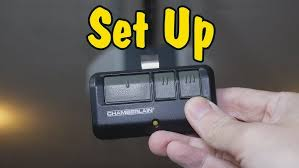
What Does “Adding a Clicker” Mean?
Adding a clicker (remote control) to your garage door opener simply means programming the remote so it communicates with your opener unit. Modern Chamberlain systems use rolling code technology, which enhances security by changing the access code every time you use the remote.
Read too: How Do You Change Code On Garage Door Keypad Fast?
According to industry data, over 70% of garage door systems installed in the U.S. since 2010 use rolling code encryption, reducing unauthorized access risks significantly.
👉 For deeper technical context, you can explore the concept of rolling code on Wikipedia:
https://en.wikipedia.org/wiki/Rolling_code
What You Need Before You Start
Before jumping into the steps, make sure you have:
- A compatible Chamberlain remote (clicker)
- Access to your garage door opener unit
- A ladder (if the opener is ceiling-mounted)
- Good lighting
- Fresh batteries in the remote
Compatibility Tip
Not all remotes work with all models. Check:
- The model number of your opener
- The color of the Learn button (Yellow, Purple, Red/Orange, Green)
Where Is the Learn Button on a Chamberlain Opener?
The Learn button is essential for programming your clicker.
Common Locations:
- On the back or side of the motor unit
- Under the light cover
- Near the antenna wire
Learn Button Color Guide:
| Color | Frequency | Typical Models |
|---|---|---|
| Yellow | 310 MHz | Newer models |
| Purple | 315 MHz | Mid-range |
| Red/Orange | 390 MHz | Older units |
| Green | 390 MHz | Very old units |
👉 This color determines compatibility with your remote.
How To Add A Clicker To Chamberlain Garage Door Opener (Step-by-Step)
Step 1: Locate the Learn Button
Climb up using a stable ladder and find the Learn button on your opener unit.
Step 2: Press the Learn Button
- Press and release the Learn button
- A small LED light will turn on
- You now have 30 seconds to program the remote
Step 3: Press the Clicker Button
- Press and hold the button on your remote
- Hold it for about 3–5 seconds
Step 4: Wait for Confirmation
- The opener light will blink or you’ll hear a click
- This means the remote has been successfully paired
Step 5: Test the Remote
- Press the clicker again
- Your garage door should open or close
✅ Done! Your clicker is now connected.
Alternative Method: Using a Wall Control Panel
Some newer Chamberlain models allow programming via the wall panel.
Steps:
- Press the “Menu” button on the wall control
- Navigate to “Program”
- Select “Remote”
- Press the button on your clicker
- Wait for confirmation
This method is useful if the opener unit is hard to reach.
Common Problems and How to Fix Them
Even though the process is simple, issues can occur.
1. Remote Not Working
Possible Causes:
- Dead battery
- Wrong remote model
- Not within programming window
Fix:
- Replace battery
- Reprogram within 30 seconds
- Check compatibility
2. Learn Button Not Responding
Possible Causes:
- Power issue
- Faulty circuit board
Fix:
- Check power supply
- Reset the opener
3. Garage Door Opens Randomly
Cause:
- Interference or duplicated codes
Fix:
- Clear all programmed remotes
- Reprogram only your devices
How to Erase All Clickers (Reset System)
If you want to start fresh:
- Press and hold the Learn button
- Hold for 6–10 seconds
- LED light will turn off
This erases all programmed remotes and keypads.
Benefits vs Drawbacks of Adding a Clicker
Benefits
- Convenient access
- Multiple users can operate the door
- Enhanced security with rolling codes
Drawbacks
- Requires occasional reprogramming
- Battery maintenance needed
- Compatibility issues with older models
Pro Tips for Better Performance
- Always use fresh batteries
- Label your remotes if you have multiple
- Keep a spare clicker in your home
- Avoid storing remotes in extreme heat
💡 Expert Insight: Garage technicians recommend reprogramming your system once a year to maintain security and performance.
How Many Clickers Can You Add?
Most Chamberlain openers support:
- Up to 5–7 remotes
- Additional wireless keypads
Check your model manual for exact limits.
Safety Considerations
- Never program remotes while the door is moving
- Keep remotes away from children
- Ensure the door path is clear before testing
FAQ: How To Add A Clicker To Chamberlain Garage Door Opener
Q1: Can I program a universal remote?
Yes, as long as it’s compatible with your opener’s frequency and Learn button color.
Q2: Why is my clicker not pairing?
Most likely due to:
- Expired programming window
- Weak battery
- Incorrect remote model
Q3: Do I need to reset the opener before adding a new remote?
No, unless you’re experiencing issues or want to remove old remotes.
Q4: How long does programming take?
Usually less than 2 minutes.
Q5: Can I add a clicker without a Learn button?
No. The Learn button is required unless using a smart control panel.
Q6: Will adding a new remote erase old ones?
No, unless you perform a full reset.
Conclusion
Learning How To Add A Clicker To Chamberlain Garage Door Opener is a simple task that saves time and improves daily convenience. With just a few steps, you can program your remote, troubleshoot common issues, and ensure your system runs smoothly.
Now that you know how it works, go ahead and set up your clicker with confidence. If this guide helped you, consider sharing it on social media so others can benefit too!
Leave a Reply