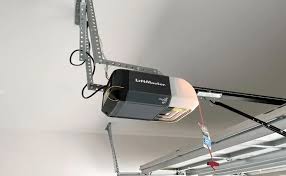
There is nothing more frustrating than pulling into your driveway after a long day, only to find your remote clicking uselessly while your garage door refuses to budge. If your system is glitching, you just moved into a new home, or you are dealing with a dead keypad, you might be asking yourself, how do you reset a Chamberlain garage door opener? Don’t worry; you are not alone, and we are here to walk you through the exact, easy-to-follow steps to get your door working perfectly again.
How Do You Reset A Chamberlain Garage Door Opener? (Step-by-Step)
Before grabbing a ladder, it is important to understand that “resetting” can mean two different things depending on your situation. Are you trying to erase all old remotes from the system for security purposes (a Factory Reset), or are you simply trying to get a newly purchased remote to talk to your motor (Reprogramming)?
Let’s break down both methods so you can choose the right fix for your problem.
Method 1: The Factory Reset (Erasing All Memory)
Use this if you moved into a new house and want to ensure previous owners or their old remotes can no longer access your garage.
- Locate the Motor Head: Safely set up a sturdy stepladder to reach the main garage door opener motor unit mounted on your ceiling.
- Find the “Learn” Button: Look on the back or side panel of the motor. You will see a small circular button next to an LED light. Depending on your model’s manufacturing year, this button will be Yellow, Orange, Purple, or Red.
- Press and Hold: Press and hold the Learn button down for exactly 10 seconds.
- Watch the LED: Keep holding until the LED light next to the button turns off completely.
- Test the System: Once the light goes out, release the button. All remotes, keyless entry pads, and HomeLink systems in your cars have now been erased from the logic board’s memory.
Method 2: Reprogramming a Remote (The Quick Sync)
Use this if you bought a replacement remote or if your remote stopped working after a neighborhood power outage.
- Tap the Learn Button: Give the colored Learn button a quick, firm press and release. The LED light will turn on and stay illuminated for 30 seconds.
- Sync the Remote: Within that 30-second window, press and hold the button on your remote control that you wish to use.
- Wait for the Confirmation: Keep holding the remote button until you hear a distinct “click” from the motor, or the main LED lights on the opener flash.
- Final Test: Step off the ladder and test your remote from your car.
Expert Note: Modern Chamberlain openers use advanced rolling code technology to ensure that every time you press the button, a new, secure signal is generated. This prevents thieves from copying your remote’s frequency to gain access to your home later.
Factory Reset vs. Remote Reprogramming: Which Do You Need?
To help you decide which path to take, here is a quick text-infographic comparison of the two procedures:
| Feature | Factory Reset (Wipe Memory) | Remote Reprogramming (Syncing) |
|---|---|---|
| Primary Goal | Total security; erase old users. | Fix a glitchy or new remote. |
| Time Required | 10–15 seconds (Hold Learn button). | 5–10 seconds (Tap Learn button). |
| Effect on System | Erases all remotes, keypads, and cars. | Adds one new device to the network. |
| When to Use | Moving into a new home; lost remote. | Replaced batteries; power surge glitch. |
Why Did My Chamberlain Opener Lose Its Memory?
According to industry data from the International Door Association (IDA), nearly 35% of all smart home service calls are simply resolved by a hard reset or battery swap. You usually do not need to call a technician. Common reasons your opener might require a reset include:
- Power Surges: A brief blackout or lightning strike can corrupt the temporary memory on the opener’s logic board.
- Radio Frequency (RF) Interference: New LED lightbulbs installed in your garage opener can sometimes emit RF noise that blocks the remote’s signal.
- Dead Remote Batteries: A weak battery sends a degraded signal that the motor simply refuses to recognize.
“A hard reset is the digital equivalent of turning it off and on again. It clears corrupted cache in the logic board and forces the system to establish a fresh, secure handshake with your remotes.” — Mark Stevens, Certified Garage Door Systems Technician
How to Reset Your Chamberlain Wi-Fi (myQ App) Connection
If you own a smart Chamberlain opener (like the popular B970 or B4613T models) and it has disconnected from your home’s Wi-Fi network, resetting the remote won’t help. You need to reset the network hub.
- Locate the Yellow Learn Button on the side of the motor.
- Press and hold the button for 10 to 15 seconds until the Wi-Fi LED indicator begins to flash rapidly or turns off.
- Open the myQ App on your smartphone (available on iOS and Android).
- Follow the on-screen prompts to reconnect the opener to your 2.4 GHz home Wi-Fi network. (Note: Most smart garage openers do not support 5 GHz networks).
Troubleshooting Common Reset Issues
Still stuck? Use this quick-reference troubleshooting guide to identify what is going wrong.
- Problem: The LED light does not turn on when I press the Learn button.
- Solution: Your opener may have lost power. Check your garage ceiling outlet and your home’s main circuit breaker panel.
- Problem: The remote programs successfully, but the door doesn’t open.
- Solution: Check the safety sensors located at the bottom of the door tracks. If the green and red lights are blinking, an object (or a spiderweb) is blocking the infrared beam.
- Problem: The door reverses immediately after hitting the floor.
- Solution: This is a travel-limit issue, not a remote issue. You will need to adjust the “Down Travel” dial on the back of the motor unit by a quarter-turn.
Frequently Asked Questions (FAQ)
1. Where exactly is the “Learn” button located on my Chamberlain opener?
The Learn button is typically located on the back panel of the motor head, near where the antenna wire hangs down. On newer models with a built-in battery backup or Wi-Fi hub, you may need to pop off a small plastic lens cover on the front or side to access the control panel where the button is housed.
2. How do I reset my Chamberlain wireless exterior keypad?
To reset and program a wireless keypad, enter your desired 4-digit PIN on the pad, press and hold the “ENTER” button, and while holding it, have a partner tap the “Learn” button on the ceiling motor. Release the ENTER button when the motor lights flash.
3. Will a factory reset erase my smartphone (myQ) settings?
Yes. If you hold the Learn button for 10 seconds to perform a hard factory reset, it wipes the entire logic board. You will need to reprogram your car’s HomeLink, your handheld remotes, your exterior keypad, and reconnect the unit to the myQ app via Wi-Fi.
4. What should I do if my remote works, but my car’s built-in HomeLink doesn’t?
HomeLink systems in vehicles sometimes require a specific “bridge” programming sequence. Clear the HomeLink buttons in your car first by holding the two outer buttons until the LED flashes. Then, press the Learn button on your Chamberlain motor, and immediately return to your car to press and hold your desired HomeLink button until it syncs.
5. Can I reset my Chamberlain opener without a ladder?
Unfortunately, no. The logic board and the “Learn” button are physically located on the motor unit mounted to the ceiling of your garage. You will need a safe, sturdy step stool or ladder to perform any hardware resets.
Leave a Reply