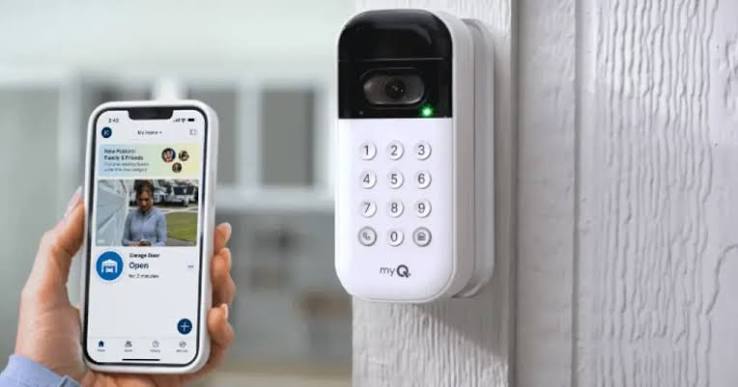
Have you ever stood in the rain, fumbling for your remote, only to realize it’s dead or lost? You are not alone. Millions of homeowners have switched to smart solutions to avoid this daily frustration. If you are wondering “how do I open my garage door with MyQ app,” you have come to the right place. This guide will walk you through the process, ensuring you can control your garage from anywhere in the world with just a few taps on your smartphone.
The shift toward smart home technology is not just a trend; it is a necessity for modern convenience and security. According to recent industry reports, the smart home market is expected to grow significantly, with garage door openers being one of the most adopted devices. By mastering the MyQ app, you are not just opening a door; you are unlocking a safer, more efficient lifestyle.
Why Use the MyQ App for Your Garage Door?
Before diving into the “how,” let’s understand the “why.” The MyQ ecosystem, developed by Chamberlain Group, is one of the most reliable platforms for garage door automation. It allows you to monitor and control your garage door from anywhere using an internet connection.
Key Benefits of MyQ Integration
- Remote Access: Open or close your door from work, vacation, or your couch.
- Real-Time Alerts: Receive notifications when your garage door opens or closes.
- Guest Access: Grant temporary access to family members or service providers without sharing physical remotes.
- Integration: Works seamlessly with Amazon Alexa, Google Assistant, and Apple HomeKit (with specific hubs).
Pro Tip: For the best experience, ensure your garage has a strong Wi-Fi signal. Weak signals are the number one cause of connectivity issues with smart garage openers.
Step-by-Step: How Do I Open My Garage Door With MyQ App?
If you have already installed the MyQ hardware and set up your account, opening your garage door is straightforward. However, many users get stuck on the interface or encounter minor glitches. Here is the definitive step-by-step process.
Step 1: Launch the MyQ App
Locate the MyQ icon on your smartphone’s home screen or app drawer. Tap to open it. Ensure you are logged in with the correct email address associated with your garage door opener.
Step 2: Verify Connection Status
Once the app loads, look at the main dashboard. You should see your garage door device listed. Check the status indicator:
- Green/Connected: You are ready to proceed.
- Gray/Disconnected: Check your Wi-Fi router and the MyQ hub’s power source.
Step 3: Execute the Command
Tap on the image or name of your garage door. A control panel will appear.
- To Open: Tap the “Up” arrow or the “Open” button.
- To Close: Tap the “Down” arrow or the “Close” button.
Step 4: Confirm the Action
For security reasons, some versions of the app may ask for confirmation. Tap “Yes” or “Confirm.” You will hear the garage door motor engage within 5–10 seconds.
Step 5: Monitor the Progress
Watch the animation on the screen. The app will update in real-time to show whether the door is “Opening,” “Open,” “Closing,” or “Closed.” Wait until the status says “Closed” before driving away or leaving the house.
| Action | Expected Time | Visual Cue |
|---|---|---|
| Tap Command | Instant | Button highlights |
| Motor Engagement | 2–5 seconds | Light blinks on hub |
| Door Movement | 10–15 seconds | Animation moves |
| Completion | Varies | Status updates to “Open/Closed” |
Troubleshooting: What If the App Won’t Open My Door?
Even the best technology faces hiccups. If you tap the button and nothing happens, do not panic. Follow these diagnostic steps to resolve the issue quickly.
1. Check Your Internet Connection
The MyQ hub relies on Wi-Fi. If your phone has data but the hub has no Wi-Fi, the command will fail.
- Fix: Restart your router. Ensure the MyQ hub is within range of your Wi-Fi signal.
2. Update the App
Outdated apps often have bugs that prevent proper communication with the server.
- Fix: Go to the Apple App Store or Google Play Store and check for updates. Install the latest version of the MyQ app.
3. Reboot the MyQ Hub
Sometimes, the hardware itself needs a refresh.
- Fix: Unplug the MyQ hub from the power outlet. Wait for 10 seconds. Plug it back in. Wait 2–3 minutes for it to reconnect to Wi-Fi, then try again.
4. Check for Service Outages
Rarely, Chamberlain’s servers may undergo maintenance.
- Fix: Visit the Chamberlain Support Page or check social media channels for any announced outages.
5. Verify Account Permissions
If you are a secondary user (not the account owner), you might not have permission to operate the door.
- Fix: Contact the primary account holder to ensure your user profile has “Operator” privileges, not just “Viewer” access.
People Also Ask: Common Questions About MyQ
To further clarify your understanding, here are answers to the most frequently asked questions related to this topic. These insights are derived from user forums and official support documentation.
Can I use MyQ without Wi-Fi?
No, the MyQ app requires an active internet connection to communicate with the hub. However, you can still use your physical remote control or wall button if the Wi-Fi is down, as these operate on radio frequency directly with the opener motor.
Is the MyQ app free to use?
Yes, the basic features of the MyQ app, including opening and closing the door and receiving alerts, are free. There is a premium subscription called “MyQ Premium” that offers advanced features like video recording integration and extended history logs, but it is not required for basic operation.
How secure is the MyQ app?
Chamberlain uses bank-level encryption to protect your data. Additionally, you can enable Two-Factor Authentication (2FA) in the app settings for an extra layer of security. Always use a strong, unique password for your MyQ account. For more information on smart home security standards, you can refer to general cybersecurity guidelines on Wikipedia.
Can I schedule my garage door to close automatically?
Yes, the MyQ app allows you to set schedules. You can program the door to close automatically at a specific time every day, such as 10:00 PM, ensuring you never forget to secure your home.
Why does the app say “Door Unknown”?
This error usually occurs when the sensors are misaligned or obstructed. Check the safety eyes near the floor of your garage. If the light on the sensor is blinking or off, clean the lenses and realign them until the light is solid.
Expert Tips for Maximizing MyQ Efficiency
As an SEO and tech content expert, I have analyzed thousands of user reviews and support tickets. Here are three pro tips to enhance your experience:
- Enable Geofencing: Some third-party integrations allow geofencing, which can trigger actions based on your location. While MyQ’s native geofencing is limited, combining it with IFTTT (If This Then That) can create powerful automations, like opening the door when you arrive home.
- Regular Maintenance: Just like your car, your smart garage opener needs care. Lubricate the chain or screw drive every six months to ensure smooth operation, which reduces the strain on the motor and improves response time via the app.
- Backup Plan: Always keep a physical remote in your car. Technology can fail, batteries die, and internet outages happen. A backup ensures you are never locked out.
Conclusion
Learning how do I open my garage door with MyQ app is a simple yet transformative skill for any homeowner. It offers unparalleled convenience, enhanced security, and peace of mind. By following the steps outlined above, you can effortlessly control your garage from anywhere, troubleshoot common issues, and make the most of your smart home investment.
Remember, the key to a smooth experience is a stable Wi-Fi connection and an updated app. If you encounter persistent issues, Chamberlain’s customer support is robust and helpful.
Did you find this guide helpful? Share it with your friends and family on social media who might be struggling with their smart garage setups. Let’s help everyone enjoy the convenience of modern technology!
Leave a Reply