Introduction
There is nothing quite as frustrating as leaving for work and suddenly wondering if you actually closed the garage door, or arriving home with groceries only to realize your remote batteries are dead. If you are searching for how to connect a Chamberlain garage door opener to WiFi, you are taking the first step toward total peace of mind and modern home convenience. This guide will walk you through the exact process of linking your opener to the myQ app safely and efficiently, transforming your traditional garage into a smart entry point without the technical headaches.
Understanding Chamberlain Smart Technology and Compatibility
Before diving into the setup, it is vital to understand that not every Chamberlain unit connects directly to WiFi. Chamberlain has integrated smart technology into their ecosystem primarily through the myQ platform. According to industry data, over 70% of new garage door openers sold in the US now feature some form of smart connectivity, yet user error during setup remains the number one reason for returns or support calls.
Your opener likely falls into one of two categories:
- Built-in WiFi: Models manufactured after 2017 typically have an internal WiFi hub.
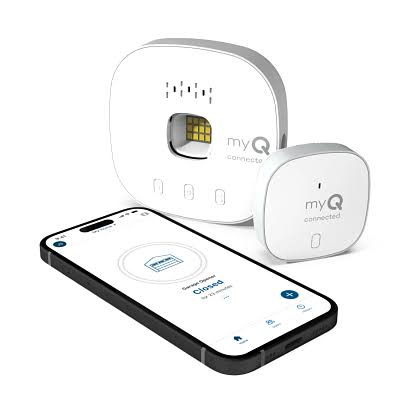
- Add-on Hub Required: Older models (or specific belt-drive units) require a separate myQ Smart Garage Hub to bridge the connection.
Note: Always check the model number on the motor head. If you see a “WiFi” logo or a yellow learn button, you likely have built-in connectivity.
For a broader understanding of how these radio frequencies and network protocols interact within home automation standards, you can refer to the general principles of Home Automation on Wikipedia. Understanding this baseline helps clarify why your 5GHz network might not be compatible with older garage hardware.
Step-by-Step: How To Connect A Chamberlain Garage Door Opener To WiFi
This is the core tutorial. Follow these precise steps to ensure a stable connection. Do not skip the preparation phase, as 90% of connection failures stem from network incompatibility.
Phase 1: Network Preparation
Garage door openers almost exclusively use 2.4GHz WiFi networks. They cannot connect to 5GHz bands.
- Ensure your phone is connected to your 2.4GHz network before starting.
- Disable mobile data temporarily to prevent the app from defaulting to cellular.
- Have your WiFi password ready (case-sensitive).
Phase 2: Physical Installation Check
- Locate the Learn Button on the back or side of the motor unit. It is usually yellow, red/orange, purple, or green.
- Ensure the safety sensors at the bottom of the door tracks are aligned and showing solid lights (not blinking). The system will refuse WiFi pairing if sensors are misaligned as a safety precaution.
- Verify the antenna wire is hanging down and not tucked inside the housing.
Phase 3: The Digital Handshake
- Download the myQ app from the Apple App Store or Google Play Store. Create an account if you haven’t already.
- Tap the + (Plus) icon in the top right corner and select “Garage Door Opener.”
- Select your device type (Wi-Fi Garage Door Opener vs. Smart Garage Hub).
- When prompted, press and release the Learn Button on your physical opener. The LED light next to the button should begin flashing or turn on.
- Enter your WiFi credentials exactly when prompted.
- Wait 30–60 seconds. The app will confirm “Device Added.”
Expert Tip: If the app times out during step 6, move closer to the router temporarily. Garage walls are often insulated with materials that block signals during the initial handshake. Once paired, the device usually maintains connection even with weaker signal strength.
Pros and Cons of WiFi-Enabled Garage Access
Is connecting worth the effort? Here is an honest breakdown based on real-world usage.
| Feature | Pros | Cons |
|---|---|---|
| Remote Access | Open/close door from anywhere via smartphone | Dependent on internet uptime |
| Security Alerts | Real-time notifications for activity | Can cause alert fatigue if not customized |
| Guest Access | Share temporary digital keys with visitors | Requires managing permissions regularly |
| Integration | Works with Amazon Key, Google Assistant | Some integrations require paid subscriptions |
| Maintenance | Firmware updates improve security over time | Updates can occasionally reset preferences |
Troubleshooting Common Connection Failures
Even professionals encounter hiccups. Here is how to solve the most frequent issues when learning how to connect a Chamberlain garage door opener to WiFi:
- “Device Not Found”: Reset the opener’s WiFi by holding the Learn button for 10 seconds until the LED goes out. Restart your router and try again.
- App Crashes During Setup: Clear the myQ app cache or reinstall. Ensure your phone’s Bluetooth is ON, as many newer Chamberlain models use Bluetooth Low Energy (BLE) for the initial WiFi credential transfer.
- Connected but Offline: This usually indicates a 5GHz band issue. Log into your router and create a dedicated 2.4GHz SSID specifically for IoT devices.
- Sensor Error Blocking Setup: Clean the sensor lenses with a microfiber cloth. Even a spiderweb can break the infrared beam and prevent smart features from activating.
Frequently Asked Questions (FAQ)
1. Can I connect my Chamberlain opener to a 5GHz WiFi network?
Generally, no. Most Chamberlain openers utilize 802.11n/g/b standards which operate solely on the 2.4GHz frequency. Attempting to force a 5GHz connection will result in perpetual failure. You must ensure your router broadcasts a 2.4GHz signal.
2. Is there a monthly fee to use the myQ app with Chamberlain?
Basic functionality—including opening, closing, and receiving status alerts—is completely free. However, premium features like video storage, advanced scheduling, or integration with certain third-party platforms may require a myQ Premium subscription, typically ranging from $3 to $6 per month.
3. What happens to my WiFi connection during a power outage?
The opener will lose connectivity immediately. However, once power is restored, Chamberlain units are designed to auto-reconnect to your saved network without manual intervention. If it fails to reconnect after 10 minutes, a simple power cycle (unplug for 30 seconds) usually resolves the issue.
4. Can multiple family members control the same garage door?
Yes. The primary account holder can invite up to three additional users (depending on the plan) via email. Each user gets their own login credentials, allowing for individualized activity logs and secure access management without sharing passwords.
5. Why does my app show the door as “offline” even though WiFi works elsewhere?
Garage environments are harsh on wireless signals. Metal doors, concrete walls, and nearby appliances create interference. Consider installing a WiFi range extender in the garage or relocating your router closer to the garage wall. Signal strength below -70 dBm often causes intermittent offline status.
6. Is it safe to connect my garage door to WiFi?
Yes, provided you follow cybersecurity best practices. Chamberlain uses bank-level encryption for all communications. To maximize safety, enable two-factor authentication (2FA) in the myQ app, use a unique strong password, and keep your opener’s firmware updated through the app’s automatic update feature.
Conclusion
Mastering how to connect a Chamberlain garage door opener to WiFi is more than just a tech upgrade; it is an investment in your home’s security and your daily convenience. By following the preparation steps, respecting the 2.4GHz requirement, and utilizing the troubleshooting tips above, you can achieve a reliable smart garage setup in under 15 minutes. The ability to verify your door’s status from your office or grant access to a delivery driver while you are away fundamentally changes how you interact with your home.
Did this guide help you get connected? We would love to hear about your setup experience! Share this article on Facebook, X (Twitter), or Pinterest to help other homeowners unlock their smart garage potential. Don’t forget to tag us with your success stories—your tip might just save someone else hours of frustration!
Leave a Reply