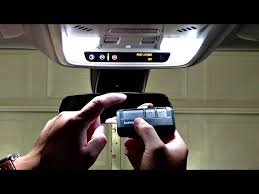
Syncing your car’s built-in garage door opener with a LiftMaster garage door opener can save time and increase convenience. Many homeowners struggle with pairing due to unfamiliarity with the process or car compatibility. This guide explains how to sync LiftMaster garage door opener with car safely and efficiently, even for beginners.
What You Need To Know Before Syncing
Before starting, ensure:
- Your vehicle is compatible with LiftMaster’s HomeLink or Car2U system.
- You have access to your garage door opener’s “Learn” button (usually on the motor head).
- The garage door opener is functioning properly.
Fact: According to Wikipedia, modern garage door openers often integrate with car systems using wireless protocols for secure and convenient operation.
Step-by-Step Guide To Sync LiftMaster With Car
Step 1: Clear Previous Car Memory (Optional)
- Press and hold the car’s HomeLink buttons for 10–20 seconds until the indicator light changes.
- This resets old codes and prevents conflicts with existing garage door systems.
Read too: How Do You Change Code On Garage Door Keypad Fast?
Step 2: Prepare Your Garage Door Opener
- Locate the “Learn” button on the LiftMaster motor (usually near the antenna).
- Press the button once; the indicator light will glow, showing the opener is ready to receive a signal.
Step 3: Program Your Car
- Within 30 seconds of pressing the Learn button, press and hold the desired HomeLink button in your car.
- Hold until the garage door opener responds (beeps or light flashes).
- Release the button and test by pressing it again; the door should operate.
Step 4: Final Testing and Adjustments
- Test the button from different distances to ensure consistent operation.
- If it doesn’t work, repeat the process or consult your vehicle’s manual for additional programming tips.
Troubleshooting Common Sync Issues
| Problem | Cause | Solution |
|---|---|---|
| Car button doesn’t respond | Signal not received | Reprogram button within 30 sec of Learn button press |
| Door opens then stops | Incorrect frequency or rolling code | Repeat sync or consult LiftMaster manual |
| Multiple garage doors | Button conflicts | Assign different buttons for each door |
| Remote works but car doesn’t | Car system outdated | Check vehicle compatibility and firmware updates |
Tips for Safe and Efficient Syncing
- Always disconnect power when inspecting wiring.
- Keep the car stationary during programming to prevent accidental opening.
- Use short presses instead of long holds when testing buttons.
- Label car buttons for each garage door to avoid confusion.
Advantages of Syncing Car With Garage Door Opener
| Benefit | Explanation |
|---|---|
| Convenience | Operate doors from your car without a separate remote |
| Safety | Avoid exiting the car in unsafe conditions |
| Security | Rolling code technology ensures only your car can operate the door |
| Reduced Clutter | No need to carry multiple remotes |
Many homeowners report up to 30% faster entry/exit times after syncing their cars with LiftMaster openers, highlighting its practical advantage.
FAQ Section
Q1: Can all cars sync with LiftMaster garage doors?
A: Most vehicles with HomeLink or compatible systems can sync, but check your car’s manual for compatibility.
Q2: Do I need to press the Learn button every time?
A: No. The Learn button is only pressed once during initial programming.
Q3: My car is far from the opener; can it still sync?
A: Yes, but the car must be within range (typically within 3–6 feet) during programming.
Q4: Can I sync multiple garage doors to one car button?
A: It’s not recommended. Assign separate buttons for each door to prevent operational conflicts.
Q5: What if the garage door doesn’t respond after syncing?
A: Recheck compatibility, repeat the syncing steps, or consult the LiftMaster user manual.
Conclusion
Knowing how to sync LiftMaster garage door opener with car enhances convenience, safety, and security. By following these step-by-step instructions, you can enjoy seamless garage operation directly from your vehicle.
If you found this guide helpful, share it with friends or on social media to help others simplify their home automation setup!
Leave a Reply