If you’ve just purchased a 2024 Kia Telluride or upgraded your garage system, setting up the built-in garage door opener can seem daunting. Many drivers struggle with syncing their vehicle’s HomeLink system with their garage door. This guide will show you how to program 2024 Kia Telluride garage door opener step by step, making the process quick and stress-free.
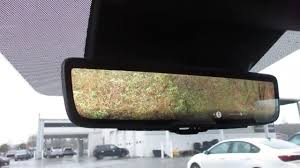
Understanding Your Kia Telluride Garage Door Opener
The 2024 Kia Telluride comes equipped with a built-in HomeLink system, designed to control garage doors, gates, and even some home lighting. Understanding the basics can save time and prevent errors.
- HomeLink Buttons: Located on the overhead console, usually labeled 1, 2, 3.
- Compatibility: Works with most major garage door brands like Chamberlain, LiftMaster, and Genie.
- Safety Feature: The system uses rolling codes to prevent unauthorized access, making programming slightly different from older vehicles.
Read too: How Do You Change Code On Garage Door Keypad Fast?
Expert Tip: According to HomeLink, “Programming is simple but must follow the exact sequence to ensure the rolling codes are recognized by your garage door opener.” (Wikipedia)
Step-by-Step Guide: How To Program 2024 Kia Telluride Garage Door Opener
Follow these steps carefully:
Step 1: Prepare Your Garage Door Opener
- Ensure the garage door is closed.
- Locate the “Learn” or “Smart” button on your garage opener motor. This is usually near the antenna wire.
Step 2: Access HomeLink in Your Kia
- Turn your Ignition On without starting the engine.
- Press and hold two outer HomeLink buttons until the LED starts flashing (about 20 seconds). This clears previous codes.
Step 3: Program a Button
- Choose a HomeLink button to program.
- Hold your garage remote 1–3 inches from the HomeLink button.
- Press and hold both the HomeLink button and remote button simultaneously. The LED will change from slow to fast blinking, indicating success.
Step 4: Train the Garage Door Opener
- Press the “Learn” button on the garage motor.
- Return to your car within 30 seconds and press the programmed HomeLink button 3 times.
- Your garage door should now respond to the vehicle button.
Step 5: Test & Confirm
- Press the programmed button once to ensure the door opens or closes.
- Repeat programming for additional doors if needed.
Common Problems and Troubleshooting
| Problem | Cause | Solution |
|---|---|---|
| LED doesn’t flash | Signal not recognized | Ensure remote battery is fresh; hold remote closer |
| Door doesn’t respond | Rolling code mismatch | Repeat training step with “Learn” button |
| Multiple doors open together | Buttons overlapped | Reprogram one button at a time |
Safety Tips While Programming
- Never stand directly under a moving door.
- Keep children away during programming.
- Avoid programming while vehicle is in motion.
Frequently Asked Questions (FAQ)
Q1: Can I program multiple garage doors in my Kia Telluride?
A: Yes, each HomeLink button can be programmed to a different garage door. Just follow the same programming steps for each button.
Q2: What if my garage door opener is not compatible?
A: Most openers work with HomeLink. For exceptions, check the HomeLink website for compatibility solutions or purchase a HomeLink-compatible universal remote.
Q3: How often do I need to reprogram my HomeLink system?
A: Only when changing garage doors or replacing your garage opener. Rolling codes ensure long-term security.
Q4: Will programming affect my car warranty?
A: No, programming the built-in system does not void your warranty. Always follow manufacturer instructions.
Q5: Can I use the system for gates or home lighting?
A: Absolutely. HomeLink supports gates, lighting, and even smart home devices. Ensure device is compatible.
Conclusion
Programming your 2024 Kia Telluride garage door opener is straightforward when following the proper steps. With HomeLink, you can enjoy seamless control of your garage, gates, and even smart home devices, all from the comfort of your vehicle. Share this guide with friends or family who might also want a hassle-free setup!
Leave a Reply