Struggling with a disconnected garage door opener after switching internet networks? You’re not alone. Many homeowners search for How To Change Wifi On MyQ Garage Door Opener when upgrading routers or moving homes—and the process can feel confusing at first.
The good news is that reconnecting your MyQ device is easier than you think. With the right steps, you can get your smart garage system back online in minutes.
What Is MyQ and Why Does WiFi Matter?
Before diving into How To Change Wifi On MyQ Garage Door Opener, it’s important to understand how the system works.
Read too: Tc1 Tricode Garage Door Opener Remote W/ Clip Chamberlain: Complete Guide
MyQ is a smart garage technology that connects your opener to your smartphone via WiFi. It allows you to:
- Open/close your garage remotely
- Receive real-time alerts
- Monitor activity from anywhere
According to smart home industry reports, over 45% of U.S. households now use at least one connected home device, making stable WiFi essential for daily convenience.
Without a proper connection, your MyQ system loses its remote functionality.
When Should You Change WiFi on MyQ?
You typically need to update your WiFi settings in the following situations:
Common Scenarios
- You changed your internet provider
- You upgraded to a new router
- Your WiFi name (SSID) or password changed
- Your MyQ device is offline
Important: MyQ does not automatically switch networks, so manual reconnection is required.
How To Change Wifi On MyQ Garage Door Opener (Step-by-Step)
This is the most important section. Follow these steps carefully.
Step 1: Prepare Your Network
Make sure:
- You are connected to a 2.4 GHz WiFi network (MyQ does not support 5 GHz only networks)
- You know your WiFi name and password
- Your smartphone has Bluetooth enabled
Step 2: Open the MyQ App
Launch the MyQ app on your smartphone.
If you don’t have it installed:
- Download from App Store or Google Play
- Log in using your account credentials
Step 3: Put the Device in WiFi Setup Mode
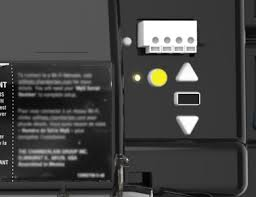
Locate the Learn button on your garage door opener.
Then:
- Press and hold the button for 6–10 seconds
- Wait until the LED starts blinking blue
This indicates the device is ready to connect to a new network.
Step 4: Reconnect Through the App
Inside the app:
- Tap “+ Add Device”
- Select Garage Door Opener
- Follow on-screen instructions
- Choose your new WiFi network
- Enter the password
Pro Tip: Keep your phone within 1–2 meters (3–6 feet) of the opener for a stable connection.
Step 5: Confirm Connection
Once connected:
- The LED will turn solid green
- The app will confirm successful pairing
Test the system by opening and closing the garage door via the app.
Troubleshooting: Why Won’t MyQ Connect to WiFi?
Sometimes things don’t go as planned. Here are common issues and fixes.
Problem vs Solution Table
| Problem | Solution |
|---|---|
| Device not found | Reset and retry setup mode |
| Wrong WiFi frequency | Switch to 2.4 GHz network |
| Weak signal | Move router closer |
| Incorrect password | Re-enter carefully |
| App not detecting device | Enable Bluetooth & Location |
Resetting MyQ WiFi Settings (If Needed)
If the connection fails repeatedly, perform a full reset.
Steps:
- Press and hold the Learn button for 10–15 seconds
- Wait for LED to turn off
- Release and restart setup process
This clears all previous network data.
Benefits of Updating Your MyQ WiFi Connection
Updating your connection improves both performance and security.
Key Benefits
✔ Faster Response Time
Commands execute instantly.
✔ Improved Security
Prevents unauthorized access from old networks.
✔ Better Reliability
Reduces disconnections and delays.
✔ Remote Access Restored
Control your garage from anywhere again.
MyQ WiFi Setup: Pros vs Cons
Infographic Comparison
Advantages
- Easy remote access
- Real-time notifications
- Smart home integration
- Increased home security
Disadvantages
- Requires stable internet
- Limited to 2.4 GHz networks
- Setup can be tricky for beginners
Expert Insight: Why 2.4 GHz Matters
MyQ devices rely on 2.4 GHz WiFi because it offers:
- Longer range
- Better wall penetration
- More stable connections
Learn more about wireless networking here:
https://en.wikipedia.org/wiki/Wi-Fi
Pro Tips for a Smooth Setup
To avoid frustration, follow these expert tips:
- Place your router within 30–50 feet of the garage
- Avoid metal obstructions
- Restart your router before setup
- Disable VPNs during connection
- Use a simple WiFi name (avoid special characters)
FAQ: How To Change Wifi On MyQ Garage Door Opener
1. Do I need to reset MyQ to change WiFi?
Not always. You can reconnect through the app, but a reset helps if the device won’t connect.
2. Why won’t MyQ connect to 5GHz WiFi?
MyQ only supports 2.4 GHz networks due to better range and compatibility.
3. How long does it take to change WiFi?
Typically 5–10 minutes, depending on your setup and connection strength.
4. Can I use MyQ without WiFi?
Yes, but only for manual operation. Remote features will not work.
5. What if I forgot my MyQ login details?
Use the “Forgot Password” option in the app to reset your credentials.
6. Does changing WiFi affect my garage door settings?
No, it only updates network connectivity—not operational settings.
Conclusion
Learning How To Change Wifi On MyQ Garage Door Opener is essential for maintaining a reliable and secure smart home system. Whether you’ve upgraded your router or switched providers, reconnecting your device ensures uninterrupted access and peace of mind.
By following the step-by-step guide above, you can quickly restore functionality and avoid common setup issues.
If you found this guide helpful, consider sharing it with friends or family who use smart garage systems—it might save them time and frustration!
Leave a Reply